


Ringside by DogShow.com: Guide for Ring Stewards
As a ring steward, you run the live running order for your ring. Every change you make (a class starting, a dog running, a dog moved) shows up right away for competitors and spectators using Ringside, and Ringside can notify competitors when it's their turn.
Before you start
- Get the Event # and Ring Steward PIN from the event secretary. Secretaries: you'll find them on DogShow.com by turning on Ring Steward functionality under the Tools menu.
- You need an internet connection (Wi-Fi or mobile data) the whole time, including at the event.
- More than one steward can run the same class, each on their own device. Changes from one appear on the other.
On this page
- Get the app
- Link the event
- Find your ring
- Run the class
- Your dogs
- A dog's card, and changing the order
- Messages from competitors
- Notes and messages to competitors
1. Get the app
Search for Ringside by DogShow.com in the Apple App Store or Google Play and install it.
2. Link the event
- Open the app, find Ring Steward Access and tap Link Event.
- Enter the Event Number and Ring Steward PIN from the event secretary, then tap Link Event.
- The event now appears under Your events. Tap Go to open it.
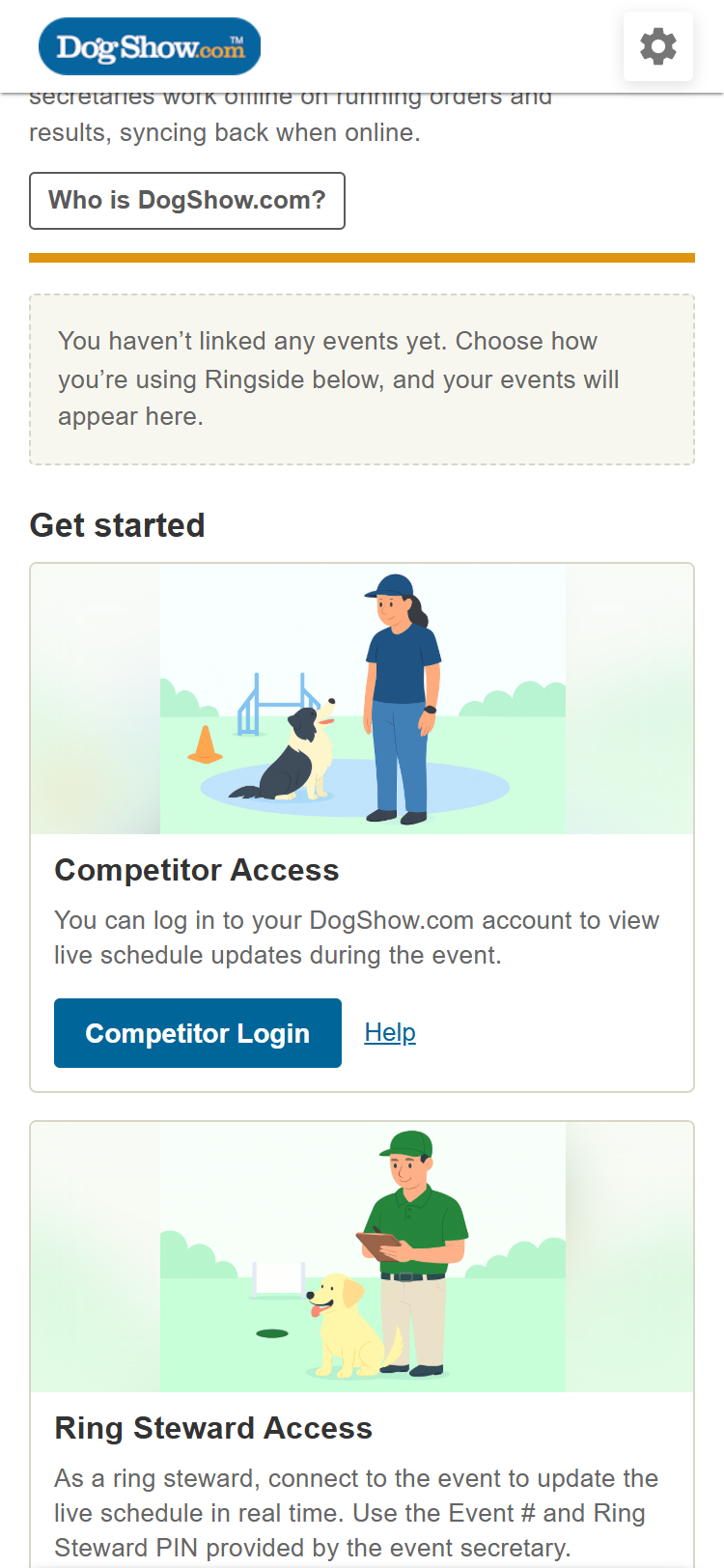
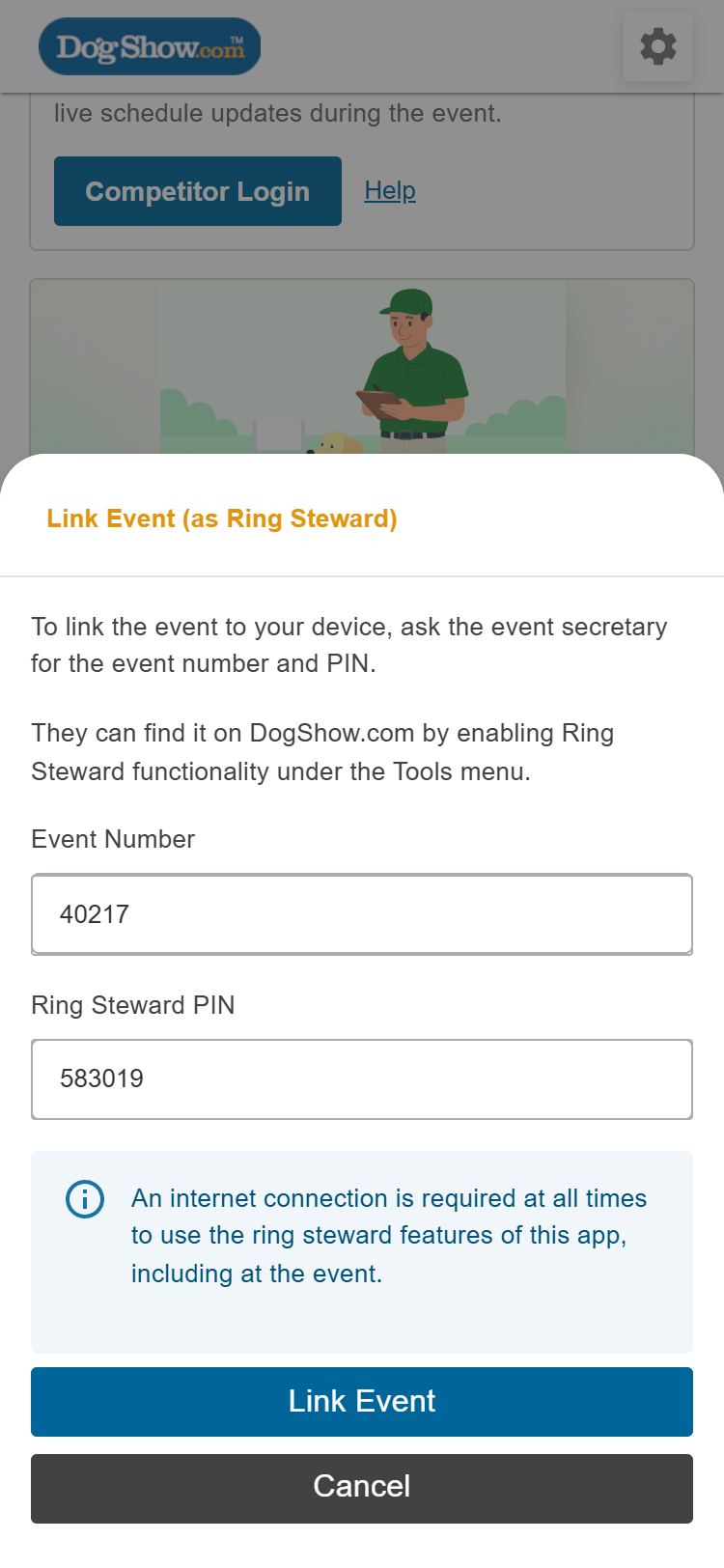
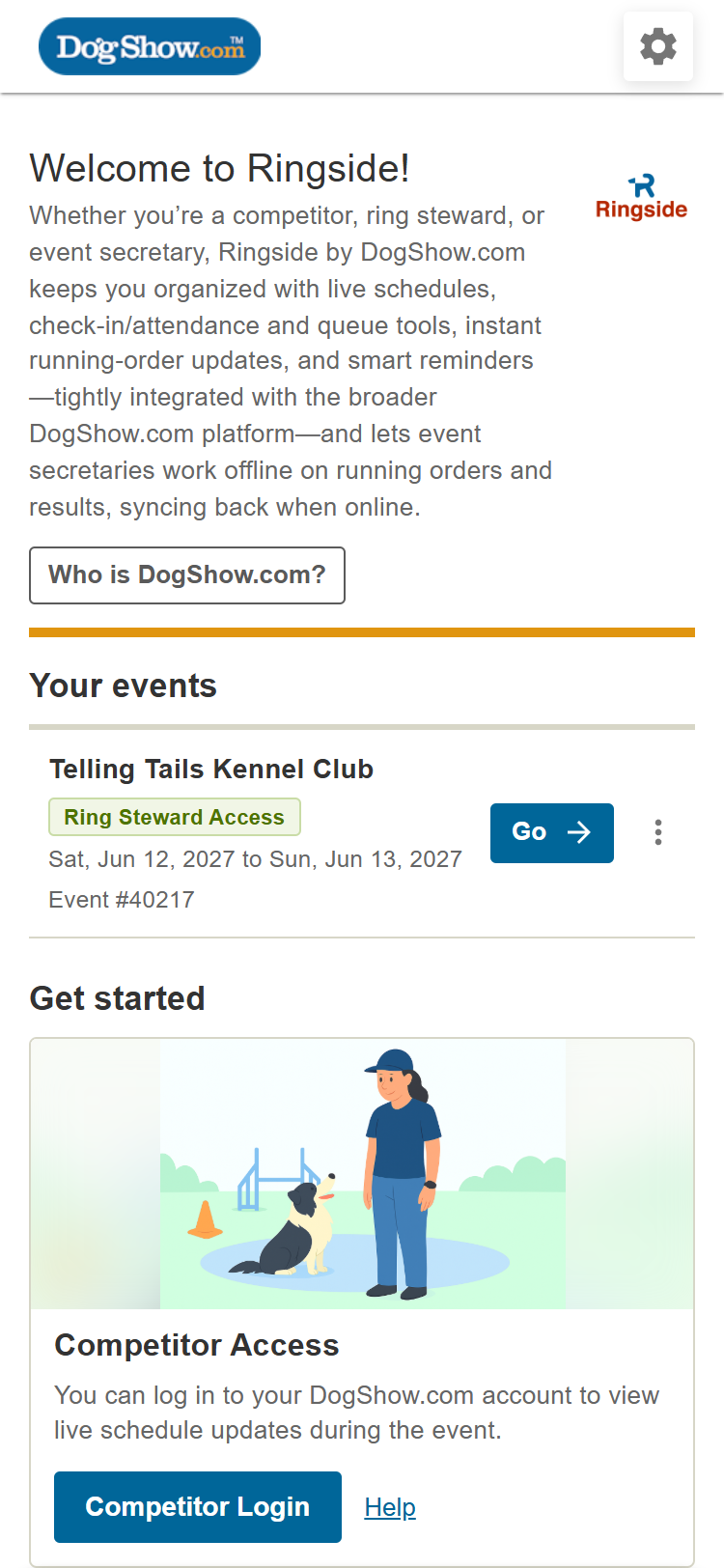
You only link an event once. If you steward for more than one event, link each one; they're all listed under Your events. After the event, you can remove it with ⋮ then Unlink.
3. Find your ring
The schedule shows every ring for the day. If the event runs over several days, tap the date to switch days.
- Tap Pick your ring, then your ring (for example, Ring 2).
- The screen now shows only your ring:
- Now in Ring 2 is the class under way, with how many dogs are done and checked in (for example, 1/7 done · 0/7 checked in). Before the first class starts, it says First in Ring 2.
- Next in Ring 2 lists the classes still to come, with their dog and check-in counts.
- Tap Open running order › to run the class.
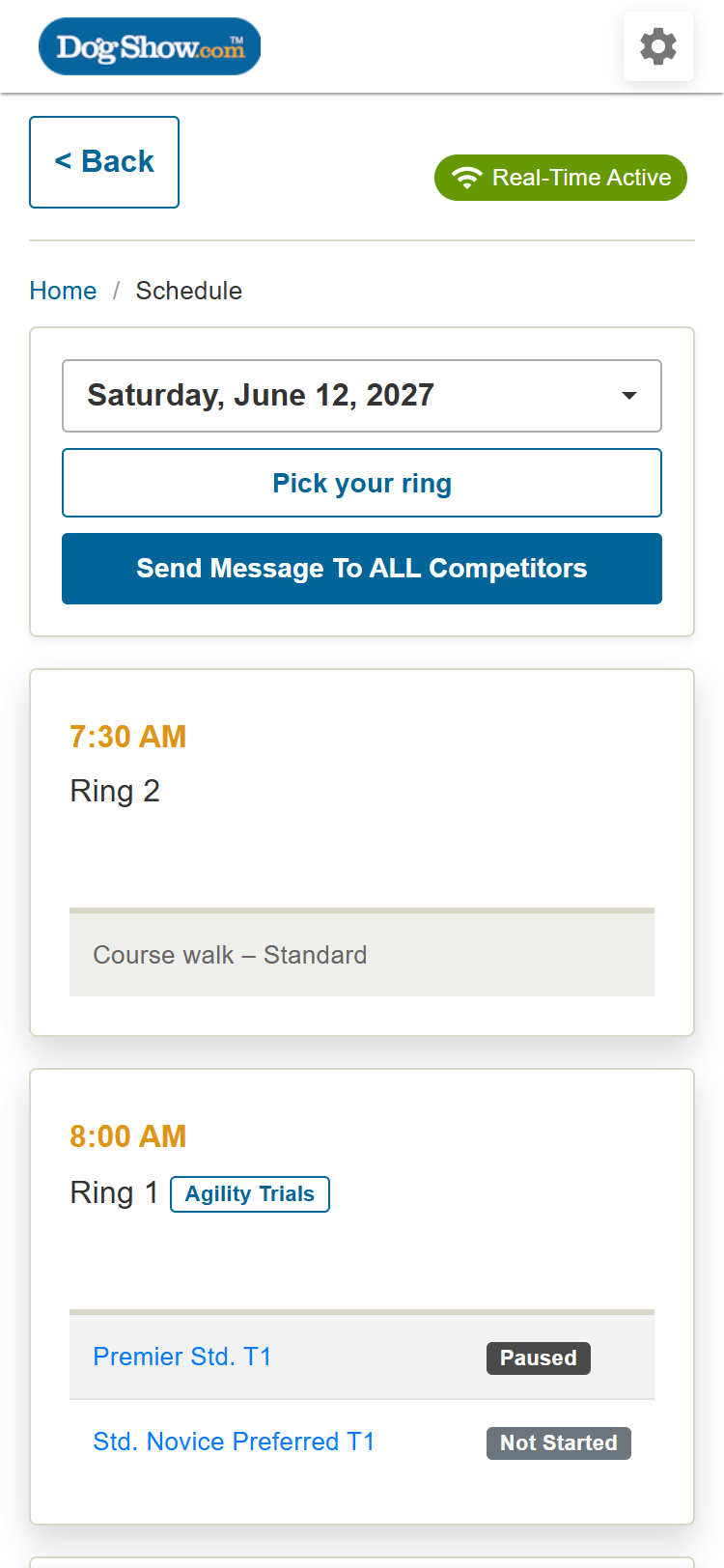
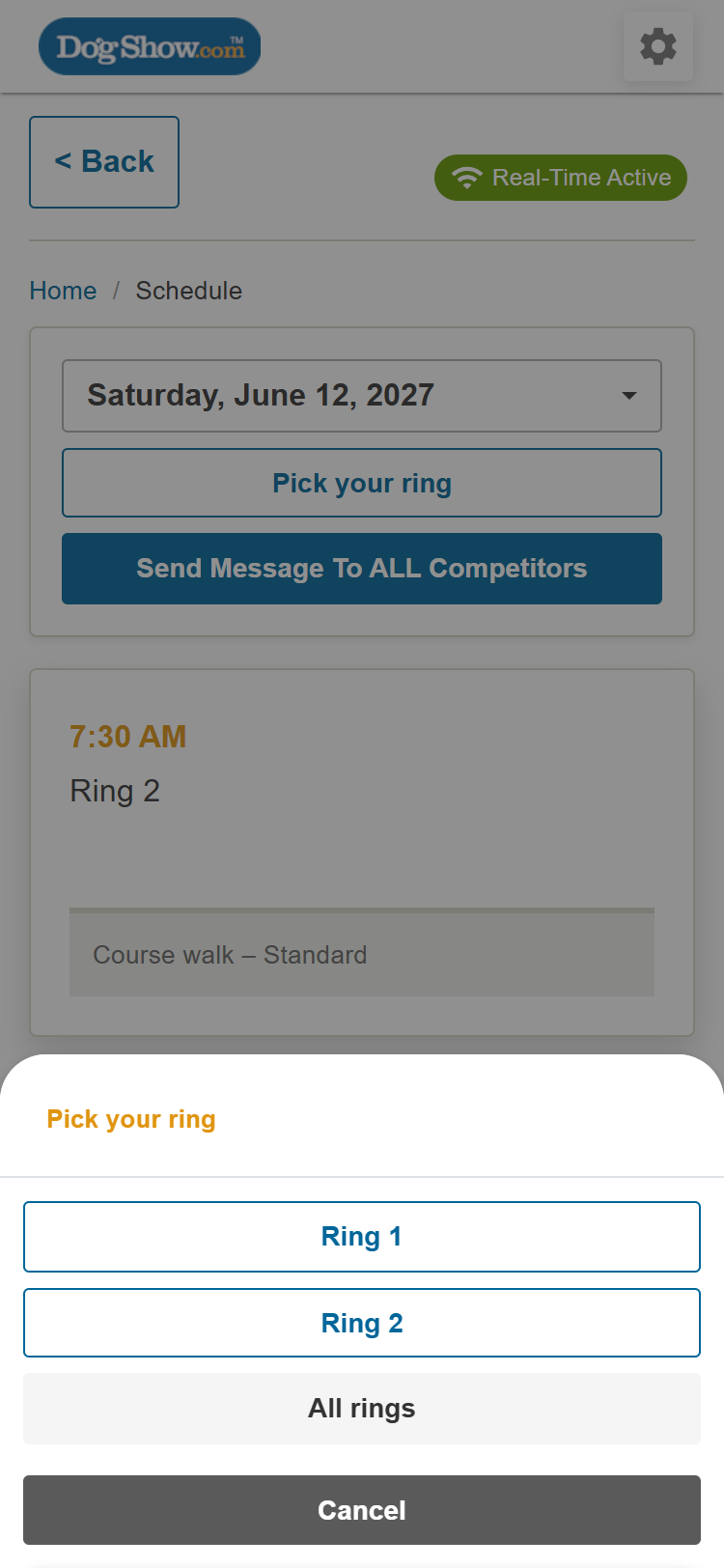
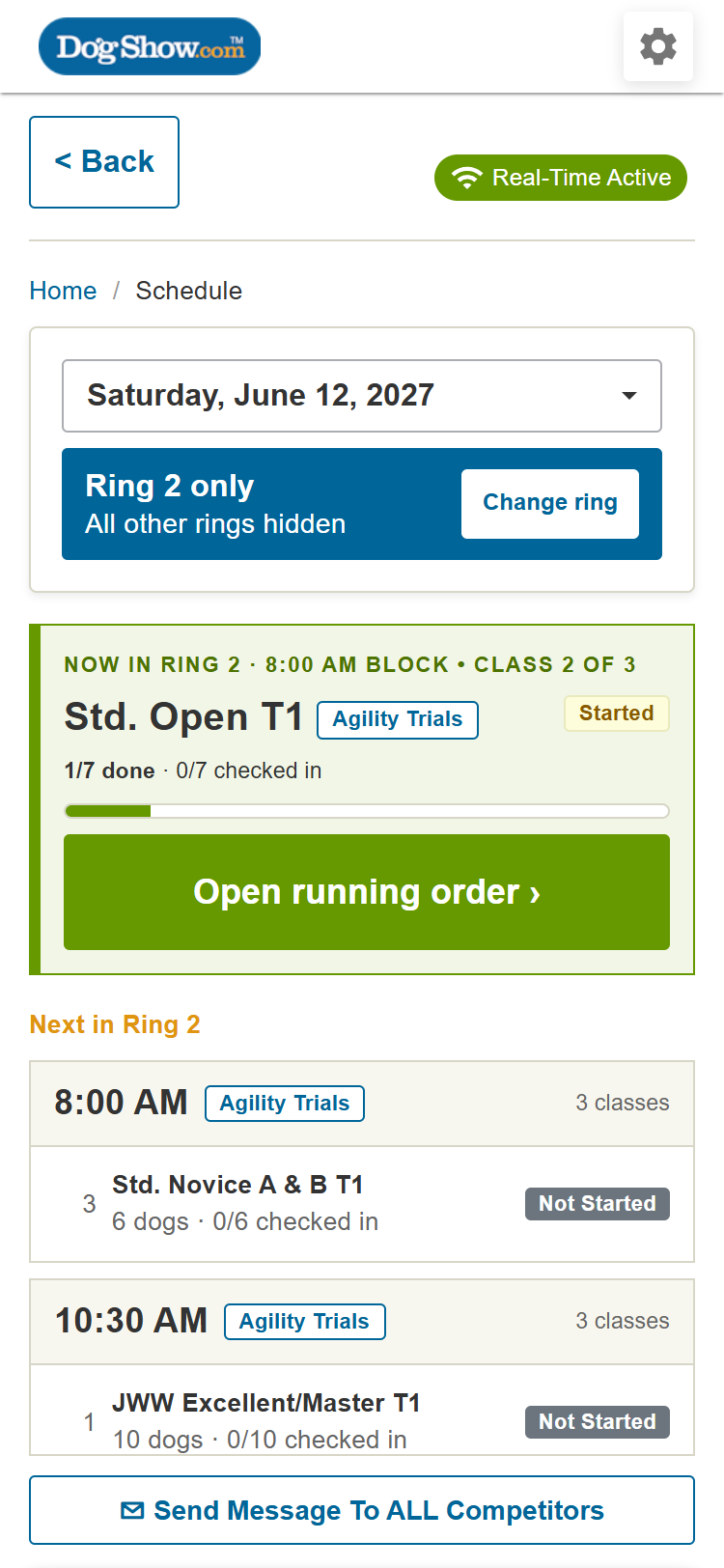
To see every ring again, tap Change ring and choose All rings.
4. Run the class
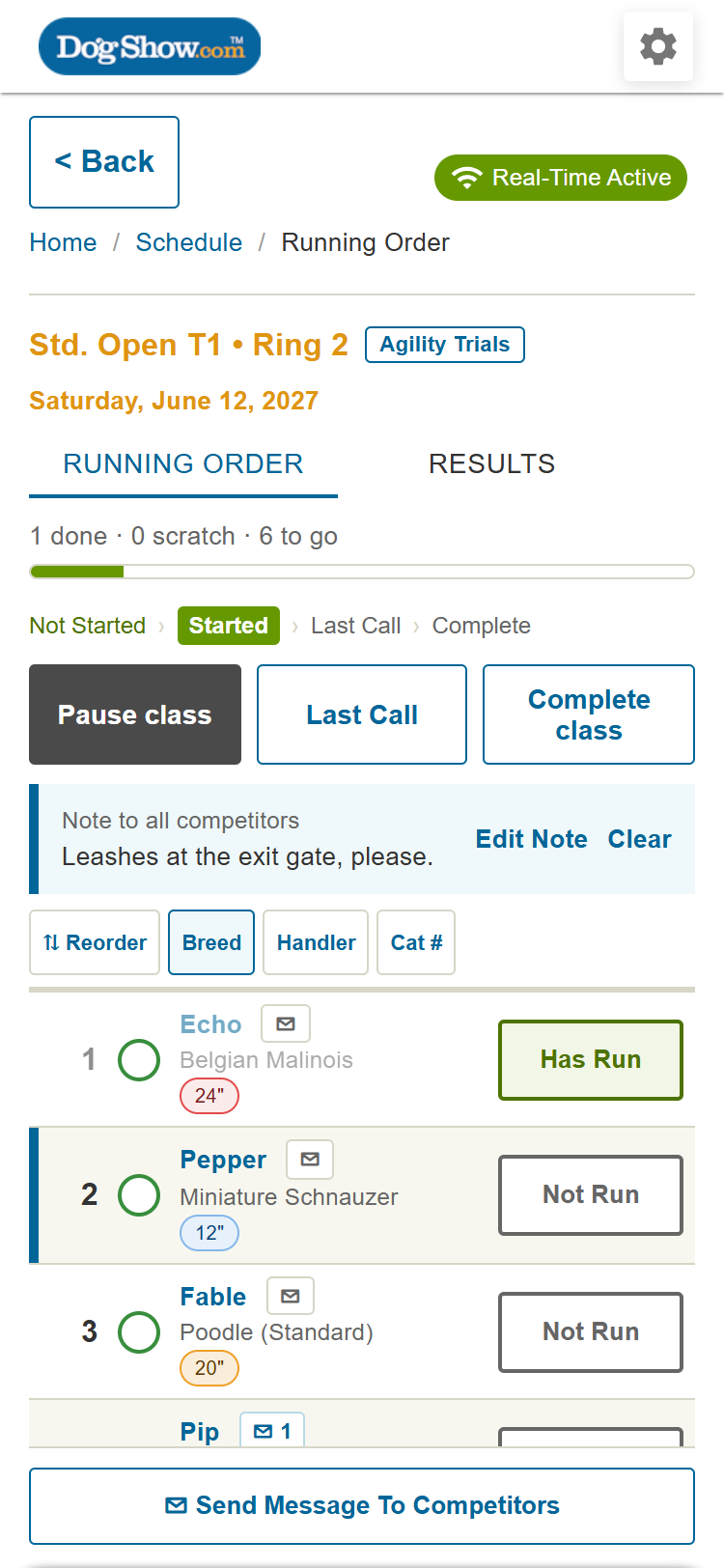
At the top of the running order you'll see the class's progress (for example, 1 done · 0 scratch · 6 to go) and where it is: Not Started › Started › Last Call › Complete. Every change is shown to competitors straight away.
The buttons under that line are the next steps for the class:
| When the class is | You'll see |
|---|---|
| Not Started | Start class |
| Started | Pause class, Last Call, Complete class |
| Last Call | Pause class, Complete class |
| Paused | Resume class, Complete class |
| Complete | Reopen class |
Starting the class and Last Call. Ringside asks whether to notify competitors and shows how many dogs are in the class and how many aren't checked in:
- ✔ Yes, and NOTIFY the competitors (when starting) or ✔ Yes, and notify the competitors that have not run yet (at Last Call);
- ✔ Yes, and DO NOT NOTIFY the competitors.
After notifying, a Notifications summary shows how many competitors were reached, and how many aren't registered with the Ringside app (they don't get notifications).
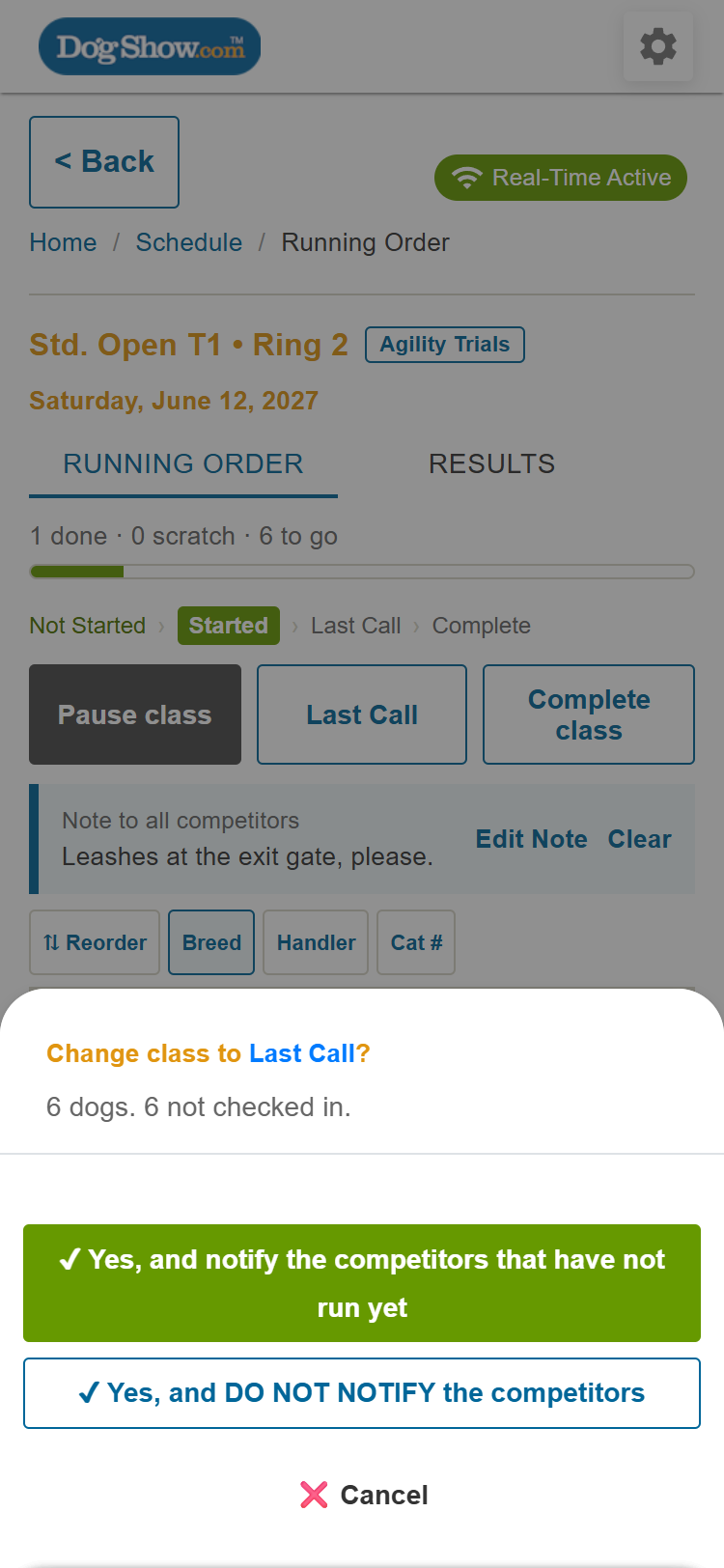
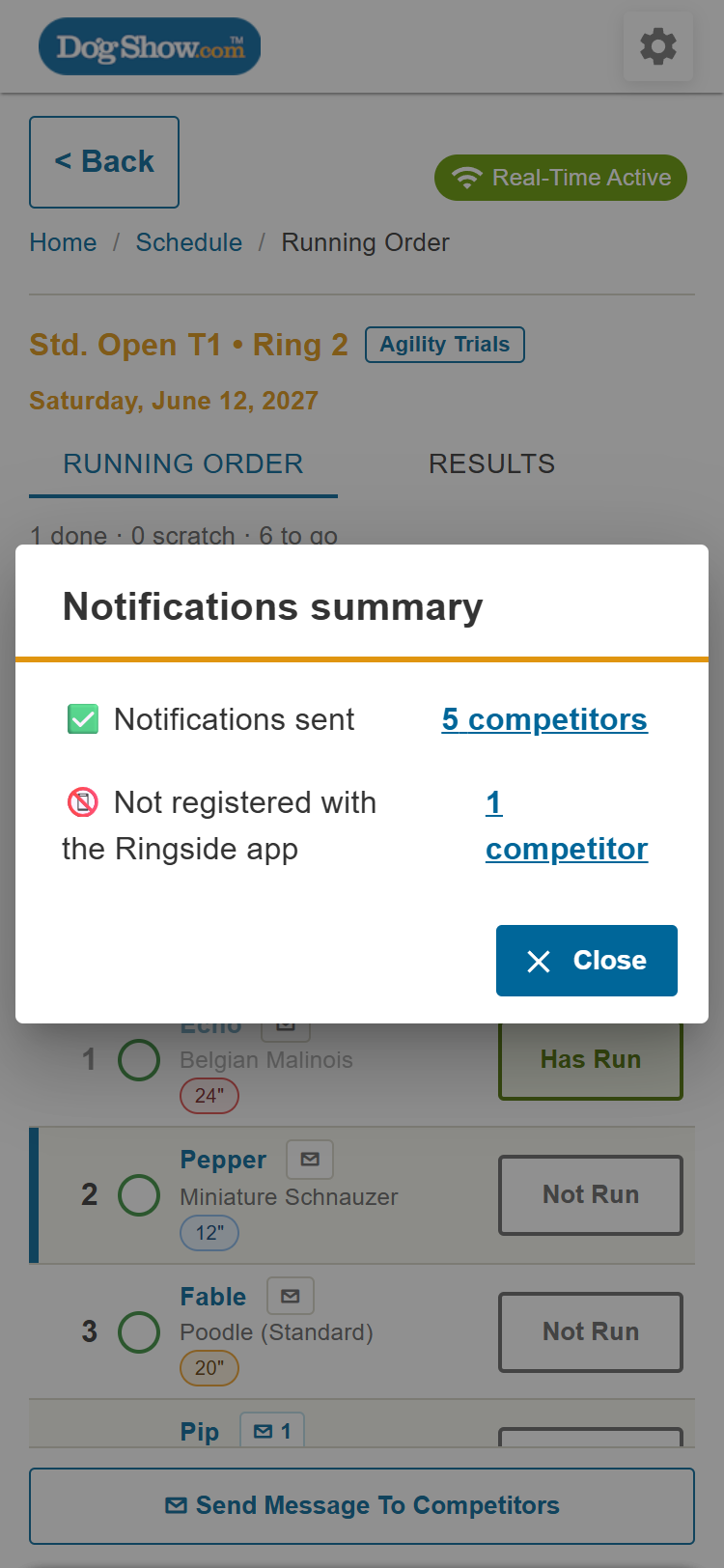
Tip: set the class to Last Call and wait a moment before Complete class. It often prompts competitors who are running late to message you.
Pausing. Tap Pause class and type a reason or a back-at time (for example, "Bar reset, back at 9:15"). Everyone following the class sees it. Tap Edit reason to change it, and Resume class to carry on.
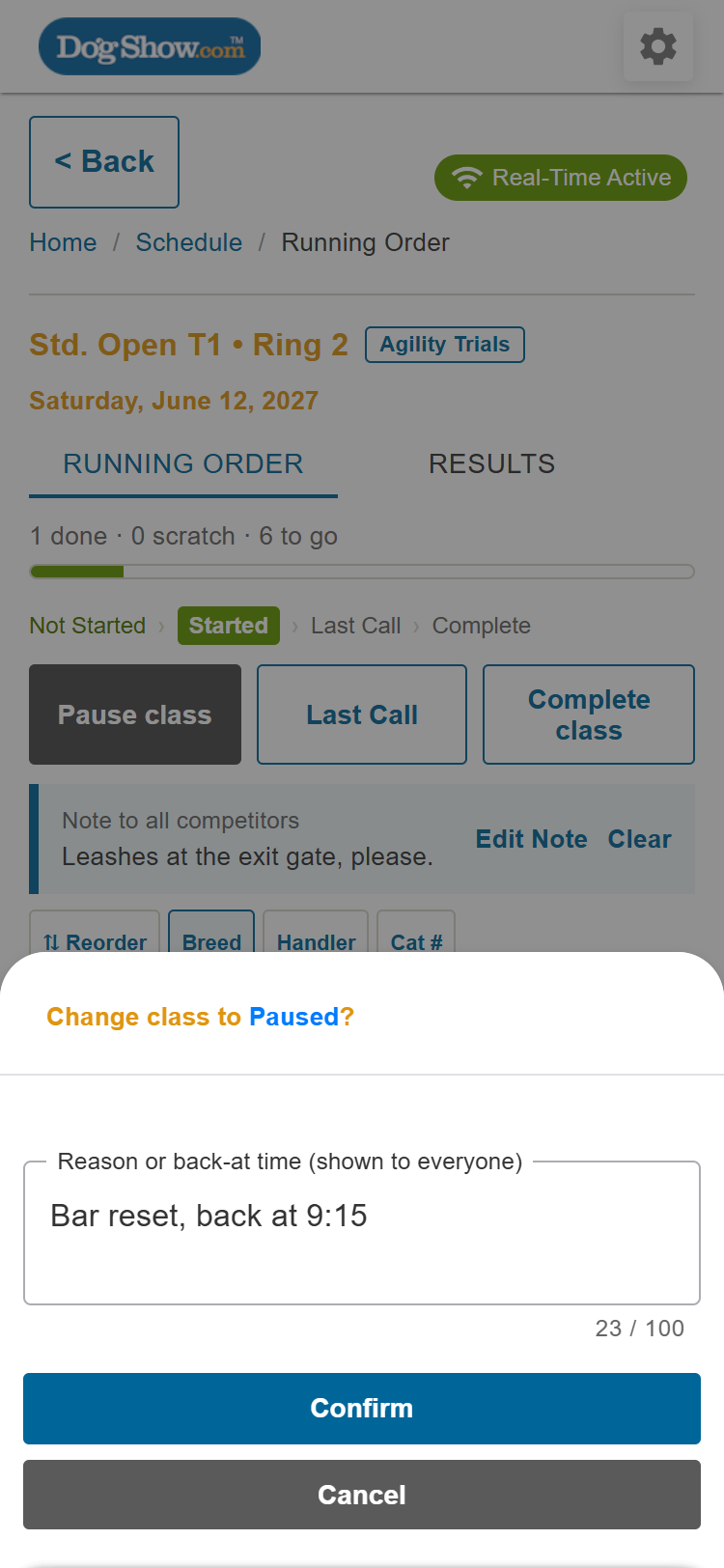
Ringside also helps you along: marking the first dog Has Run offers to start the class, and marking the last dog offers to complete it. To set any status directly, tap the Not Started › Started › … line.
5. Your dogs
Each dog in the running order shows, from left to right:
- Its place in the order.
- The check-in circle. Tap it to check the dog in (it fills in), and again to cancel. Competitors can also check themselves in for the day.
- The dog's name, with an envelope for messages (see section 7). Tap Breed or Handler above the list to show those under each name. Your choice is remembered on this device.
- Its status. On a phone, tap the button to go from Not Run to Has Run to Scratch, and back to Not Run. On a tablet, the three are side by side.
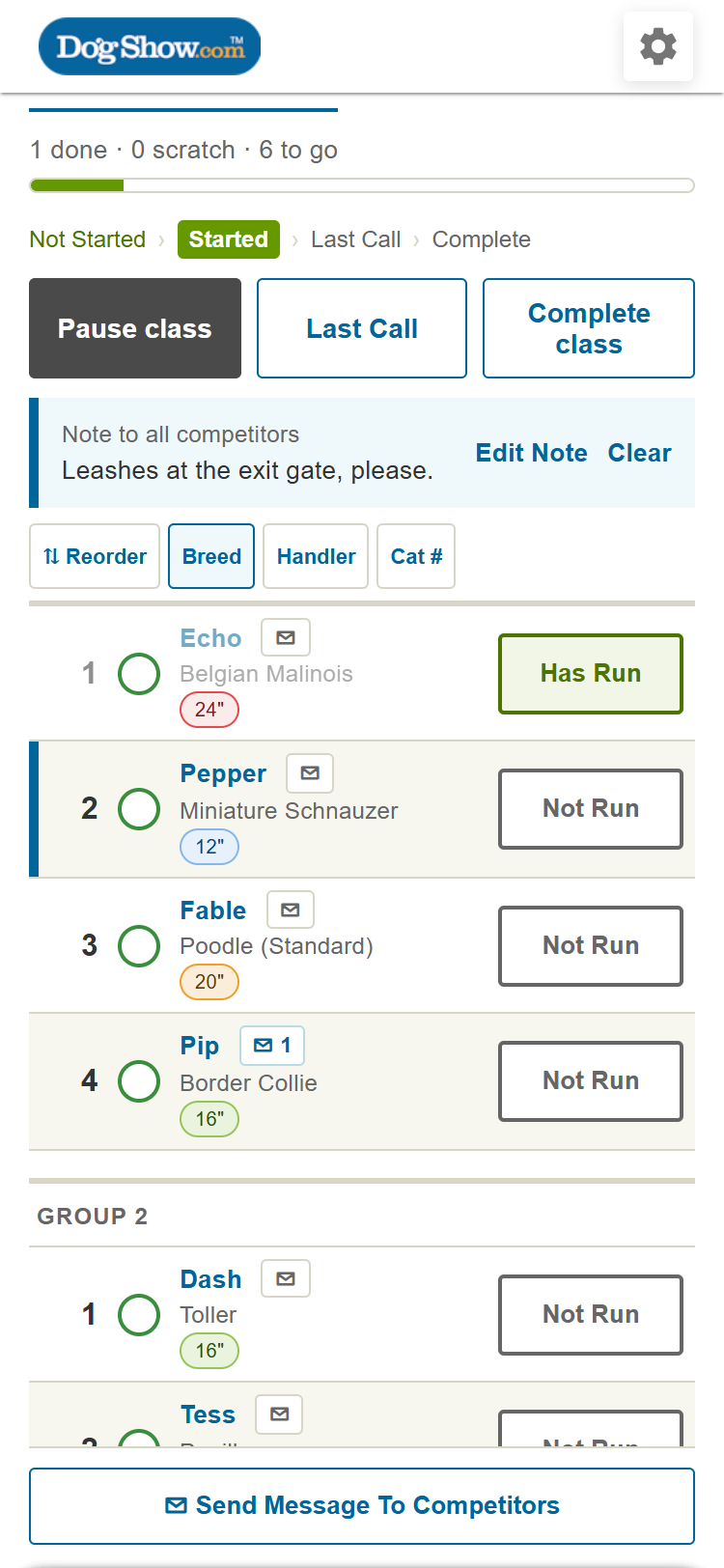
The dog up next is marked with a blue bar. When a competitor scratches their own dog, it shows as Scratch for you right away; set it back to Not Run to undo it.
Groups and Unassigned. Large classes can be split into groups (Group 2 and so on). Dogs moved up from another class by the event secretary, and day-of entries, appear under Unassigned at the top. Move them into the running order, or competitors won't see them.
6. A dog's card, and changing the order
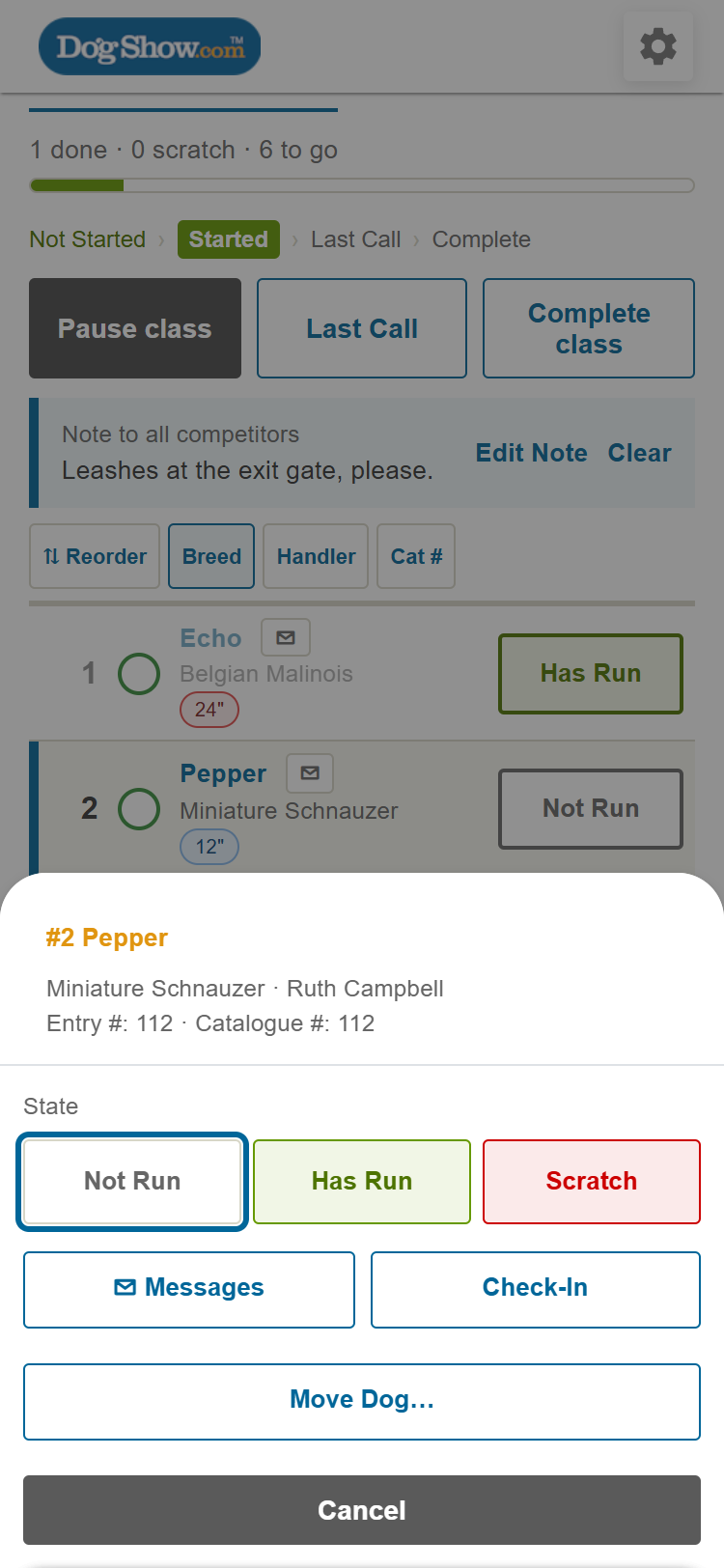
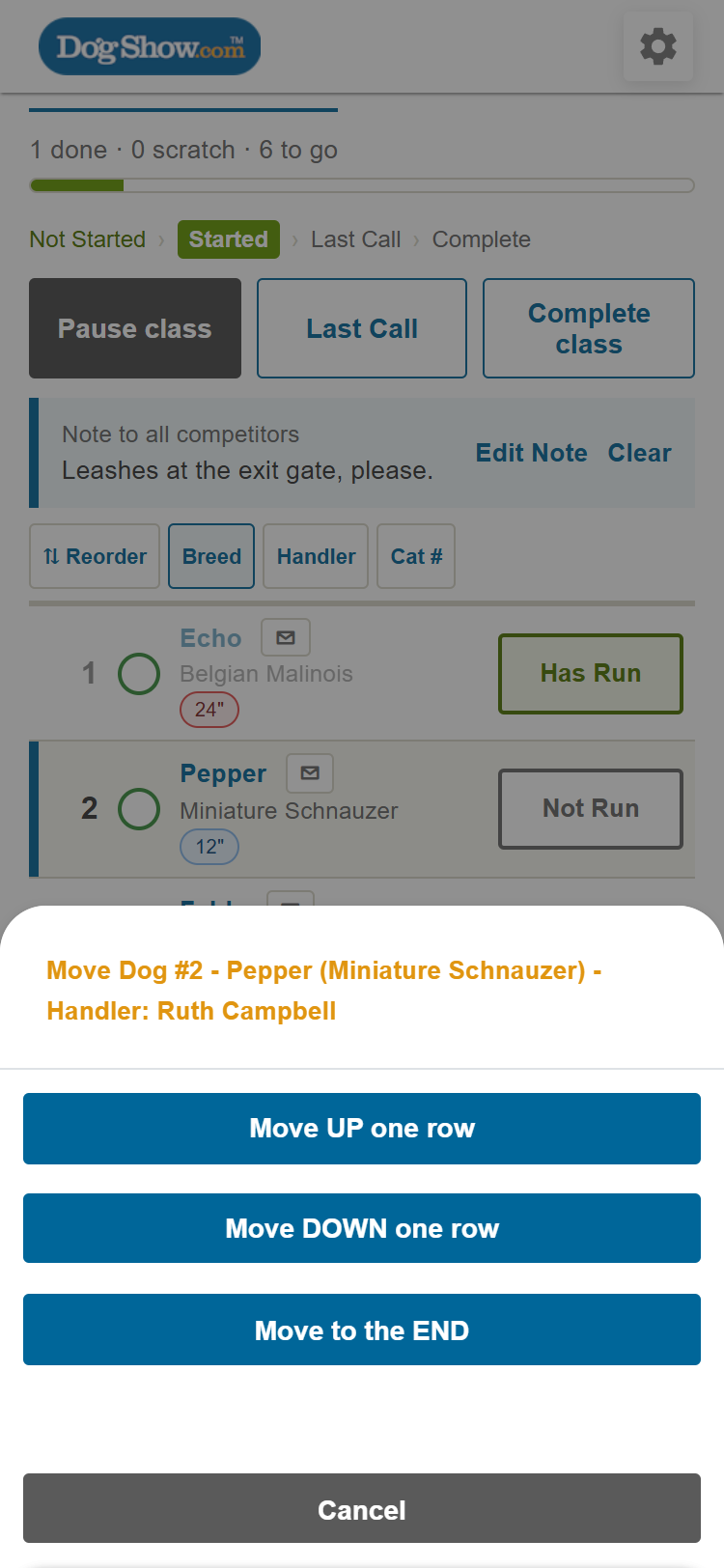
Tap a dog's name to open its card: breed, handler, entry and catalogue numbers, and buttons to set its status, open its Messages, Check-In, or Move Dog….
Move Dog… offers Move UP one row, Move DOWN one row and Move to the END. When the class uses groups, you can also move the dog to the end of its group, or to another group.
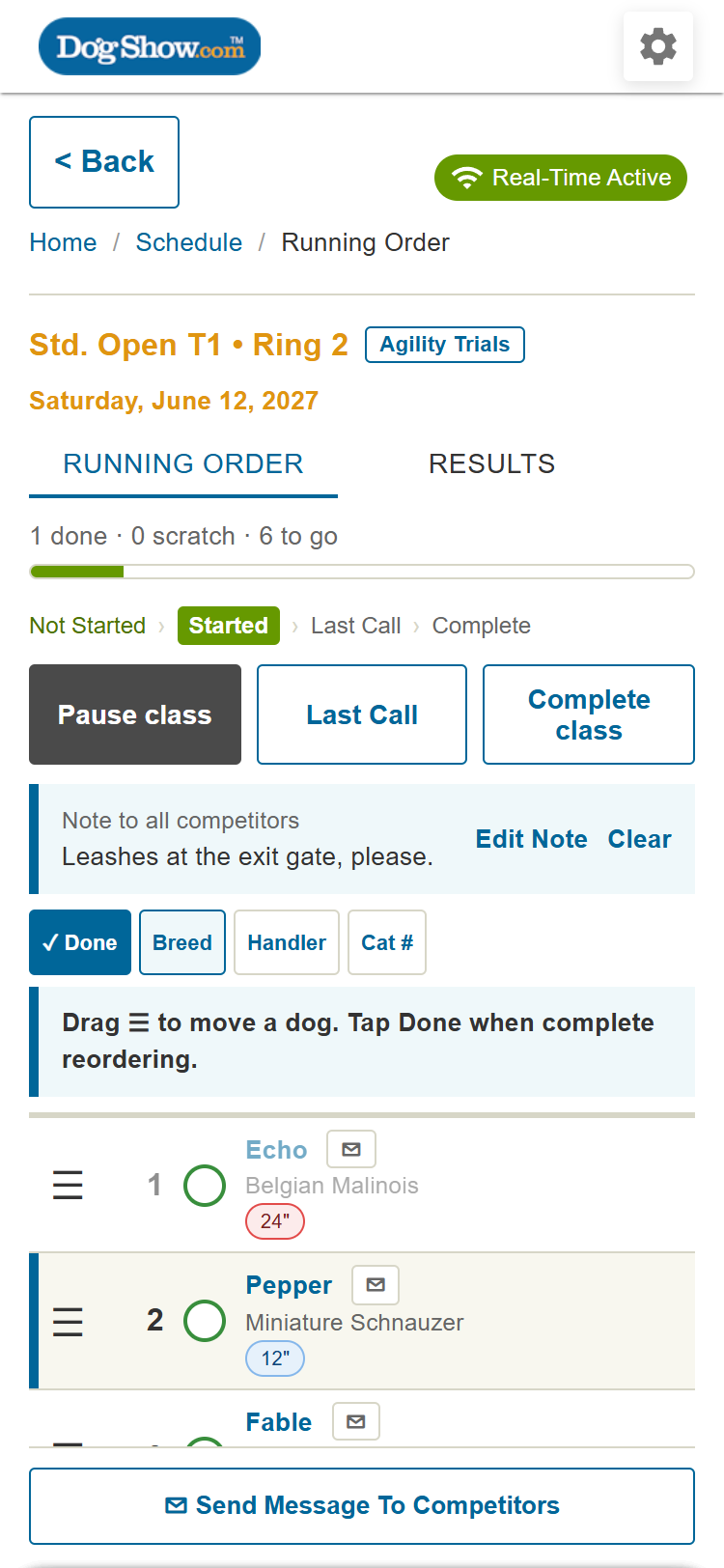
Reordering by dragging. Tap Reorder, then drag dogs by the ☰ handle. Tap Done when you're finished. The new order is shown to everyone straight away.
7. Messages from competitors
Competitors can message you when they're running late or can't make their run. When one arrives:
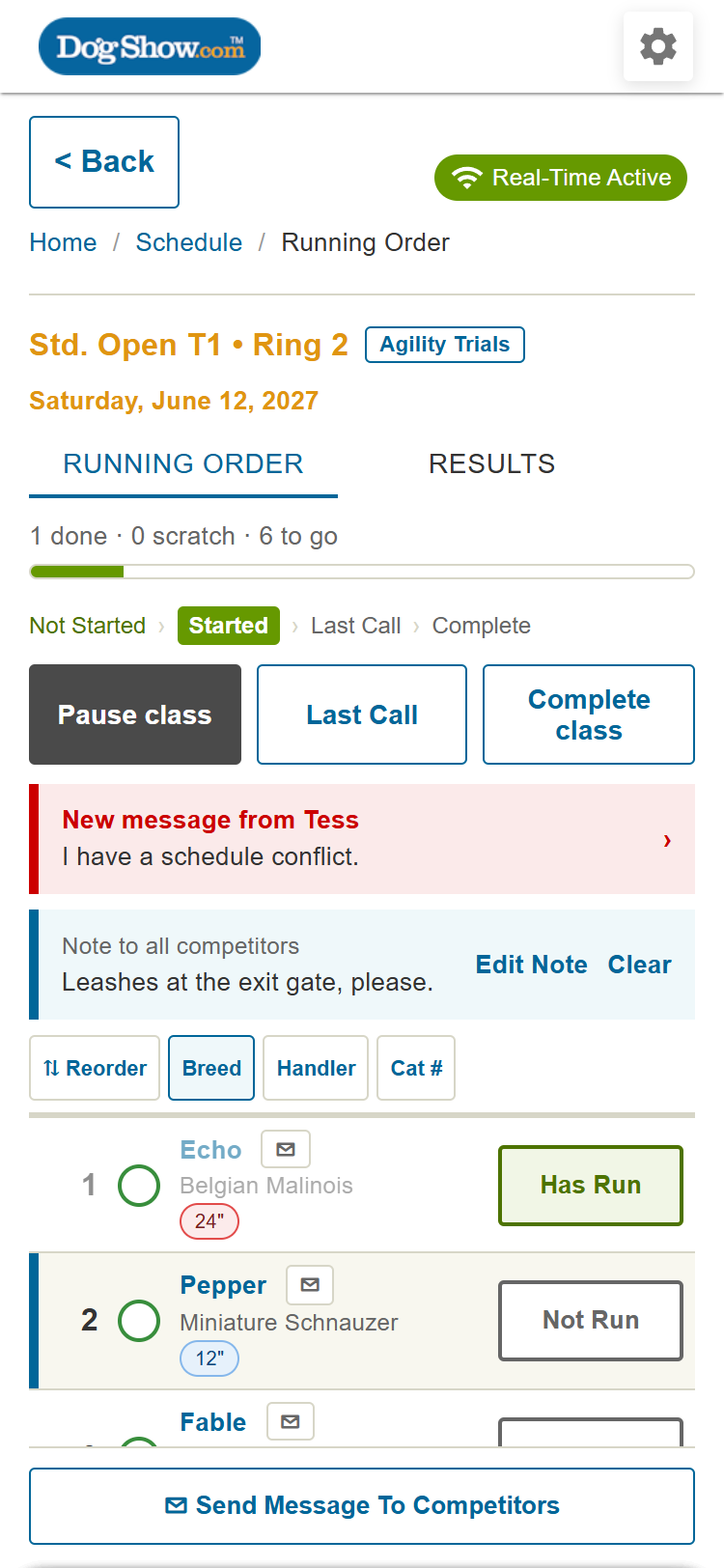
- A red banner appears at the top, for example New message from Tess, with the message. Tap it to open the conversation.
- The dog's envelope shows the number of unread messages (for example, 1 unread). An envelope with a number shows how many messages that competitor has sent; a plain envelope means none yet.
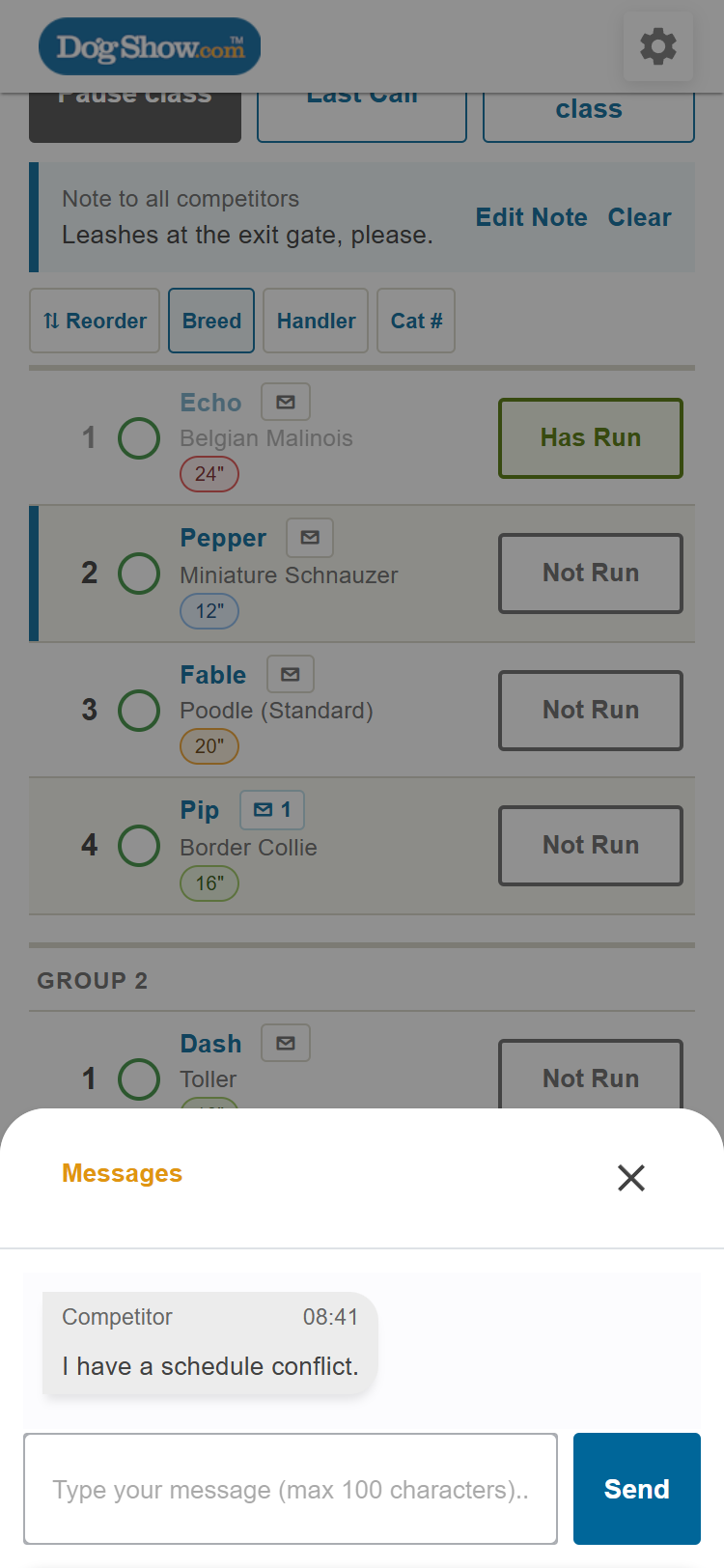
Opening the conversation marks the messages as read, and the competitor sees Received. Type a reply and tap Send. To message a competitor who hasn't written to you, tap the envelope on their dog.
8. Notes and messages to competitors
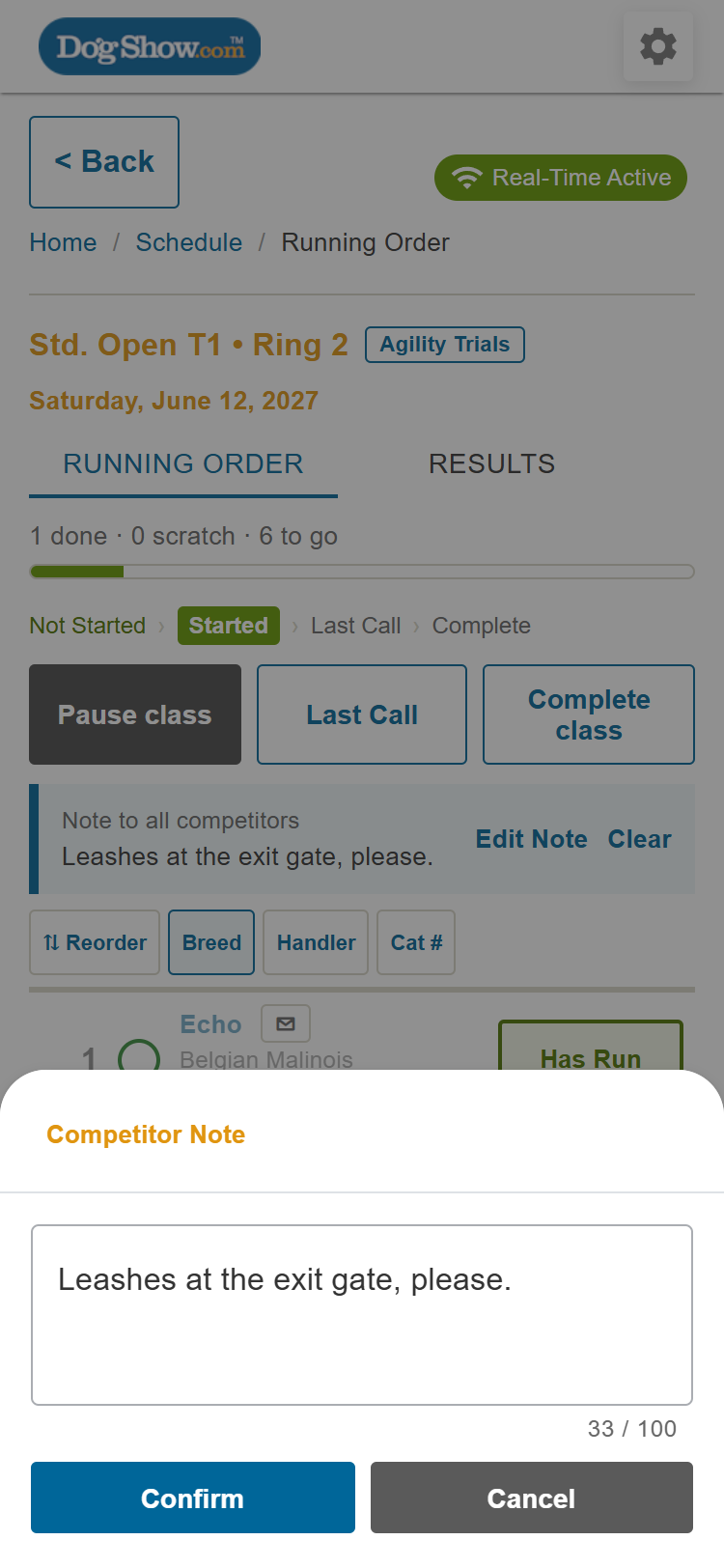
Note to all competitors. A short note shown at the top of the class for every competitor (for example, "Leashes at the exit gate, please"). Tap Add note, or Edit Note to change it, and Clear to remove it. Up to 100 characters.
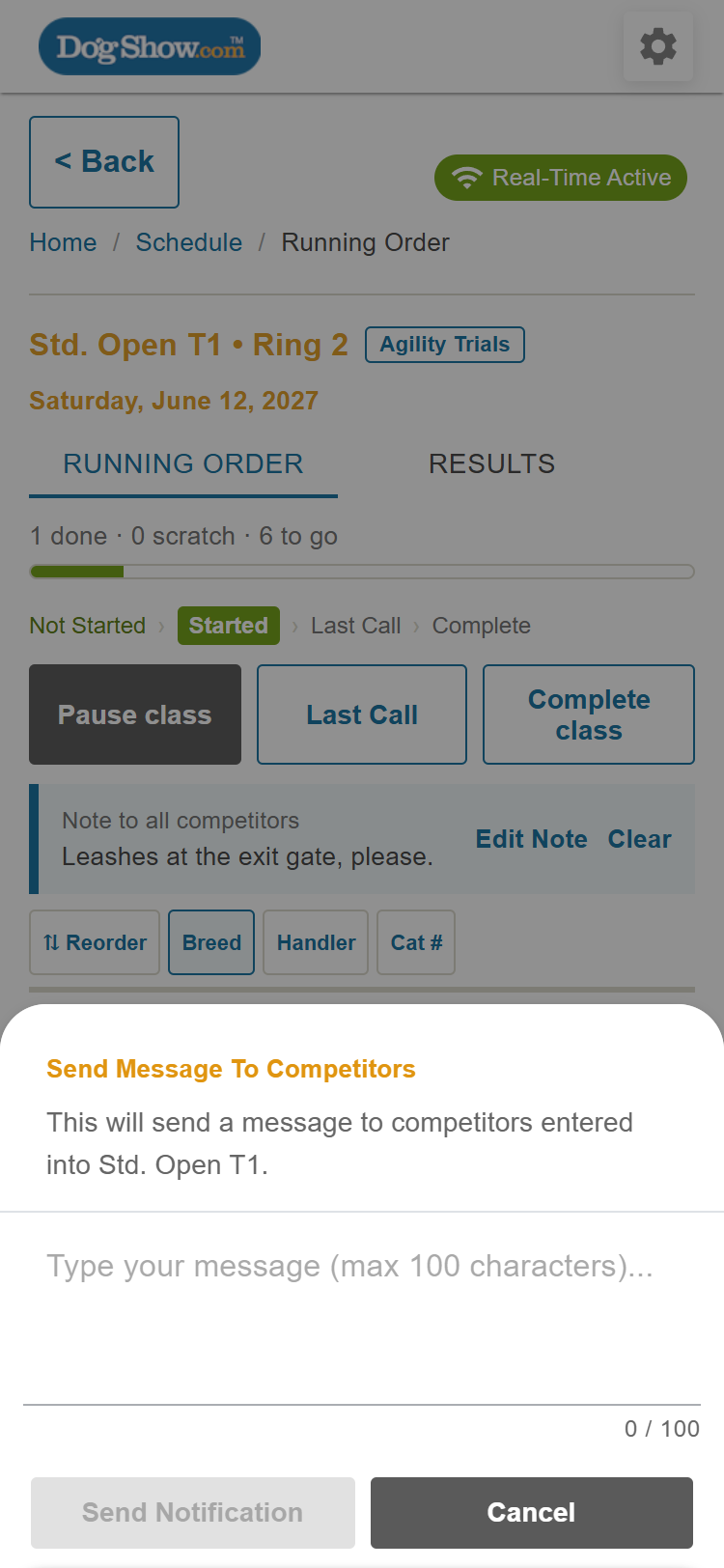
Send Message To Competitors (at the bottom of the running order) messages every competitor entered in this class.
Send Message To ALL Competitors (on the schedule) messages every competitor entered that day, in all rings. Use it for event-wide news, such as a delayed start.
Competitors can reply with a ready-made or custom message, and their replies come back to you in the app.

