


Ringside by DogShow.com: Guide for Competitors
Ringside shows you where your dogs are in the day: which class is up next, how many dogs are ahead of yours, and when your class starts. You can also check in, scratch a dog, and message the ring steward without leaving your spot.
Before you start
- The event has to be using Ringside. The live schedule appears only for events where the event secretary has turned it on and the ring stewards are using Ringside. It usually shows up close to the event date.
- You need an internet connection (Wi-Fi or mobile data) the whole time, including at the event.
- Allow notifications when the app asks. That's how the ring steward reaches you.
On this page
- Get the app and log in
- Your day at a glance (My day)
- What's happening in every ring (Rings now)
- The full schedule
- Check in for the day
- Follow your class's running order
- Message the ring steward
- Scratch a dog
- Notifications
- No app? Use Ringside in your browser
1. Get the app and log in
- Install the app. Search for Ringside by DogShow.com in the Apple App Store or Google Play and install it.
- Log in. Open the app, find Competitor Access and tap Competitor Login. Enter the email address and password you use on DogShow.com and tap Login.
- Open your schedule. Under Your events you'll now see Your entries. Tap Schedule.
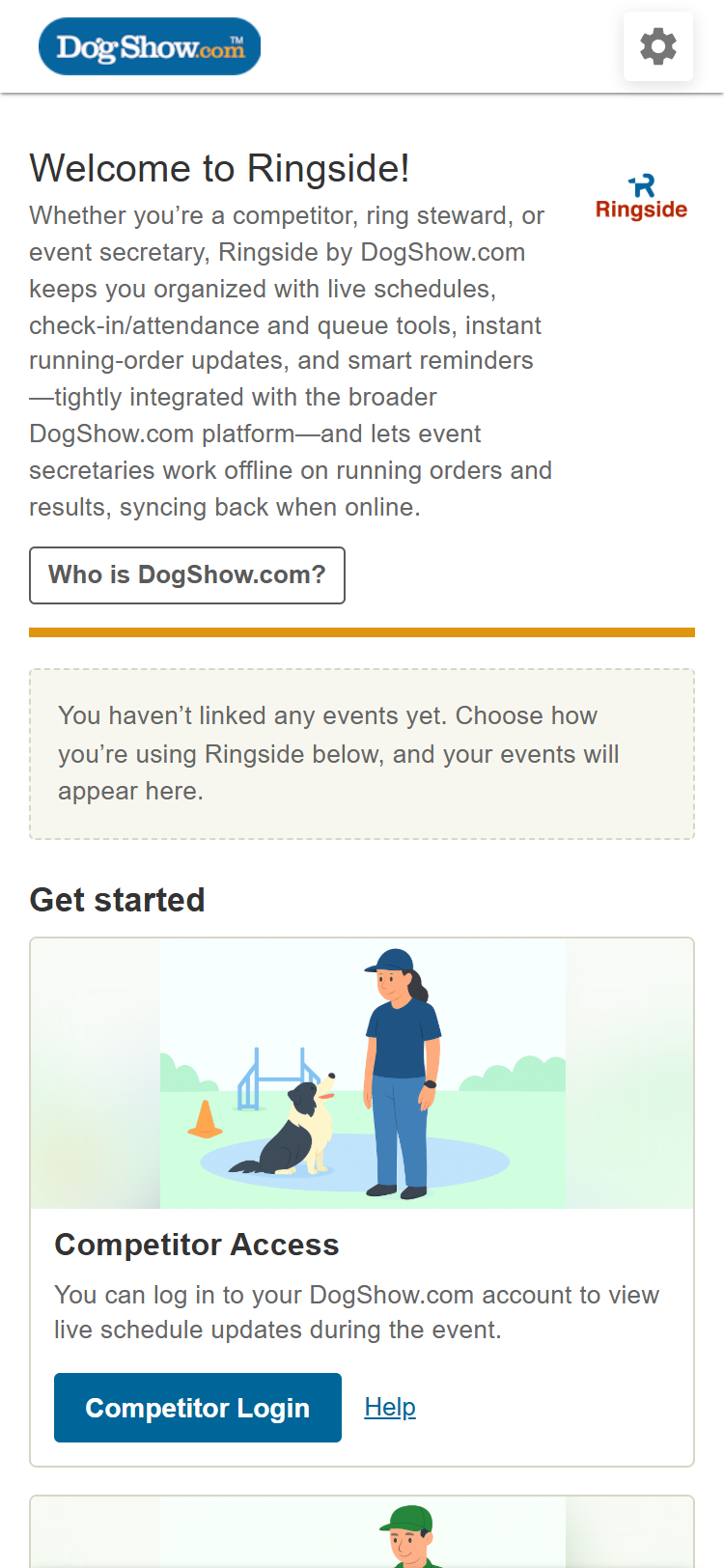
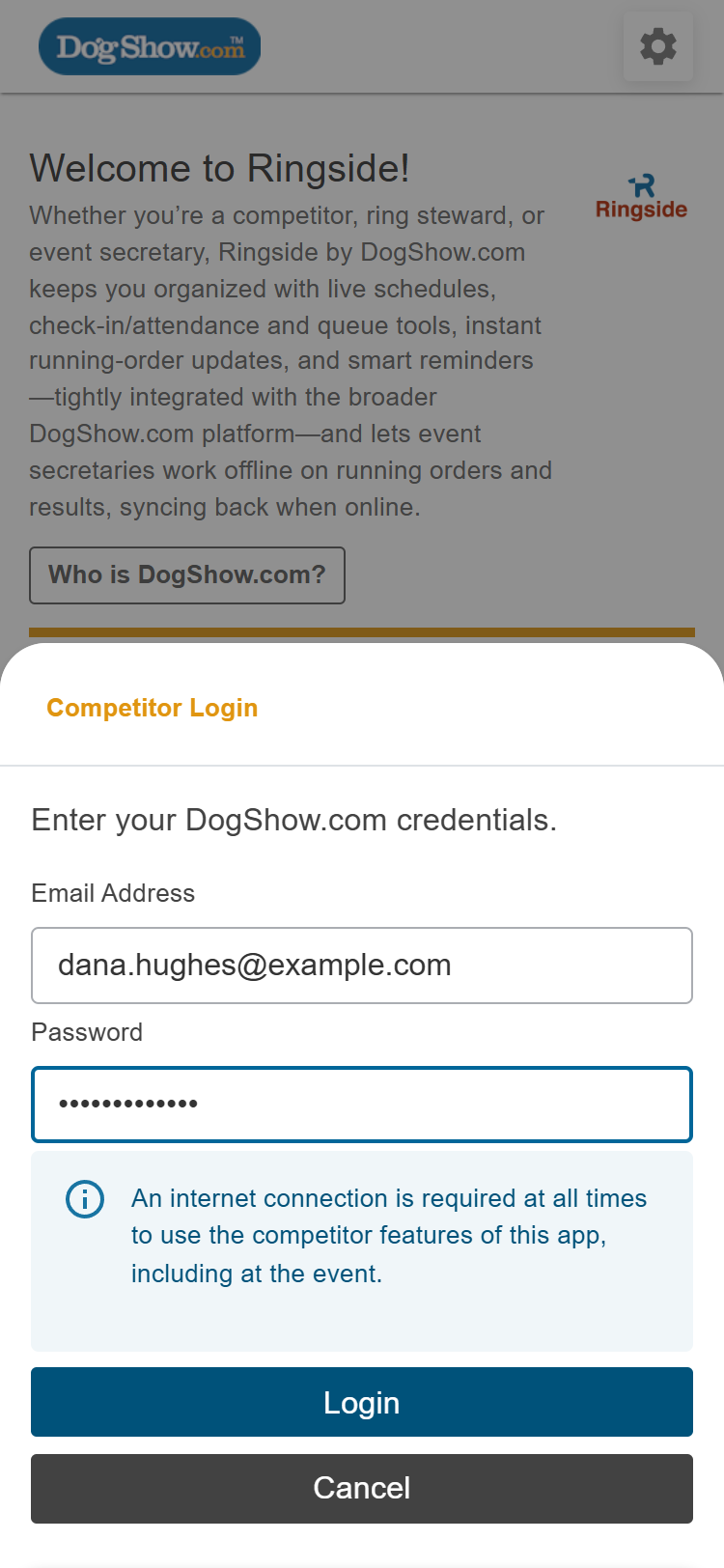
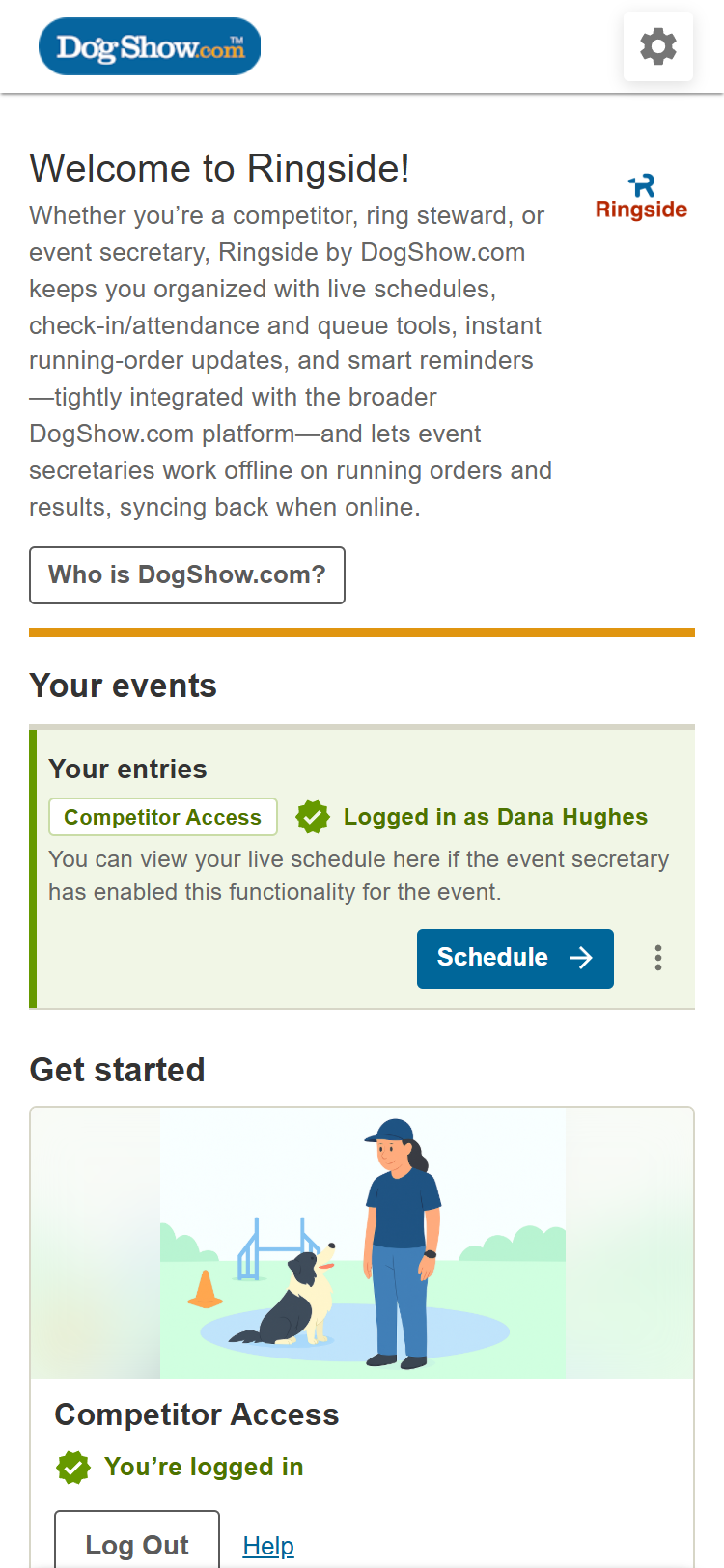
You only need to log in once. Ringside shows all your current events that are using it, so there's nothing to link per event.
If you see Live Schedule Not Available, none of your upcoming events has a live schedule yet. Check back closer to the event date.
2. Your day at a glance (My day)
The schedule opens on My day: only the classes you're entered in, for the date shown at the top. If the event runs over several days, tap the date to switch days.
- Up next is the class you'll be in next.
- Still to run lists the rest of your classes for the day. Sort it By time, or By dog to see each dog's classes together.
- Done collects the classes you've finished. Tap it to open the list.
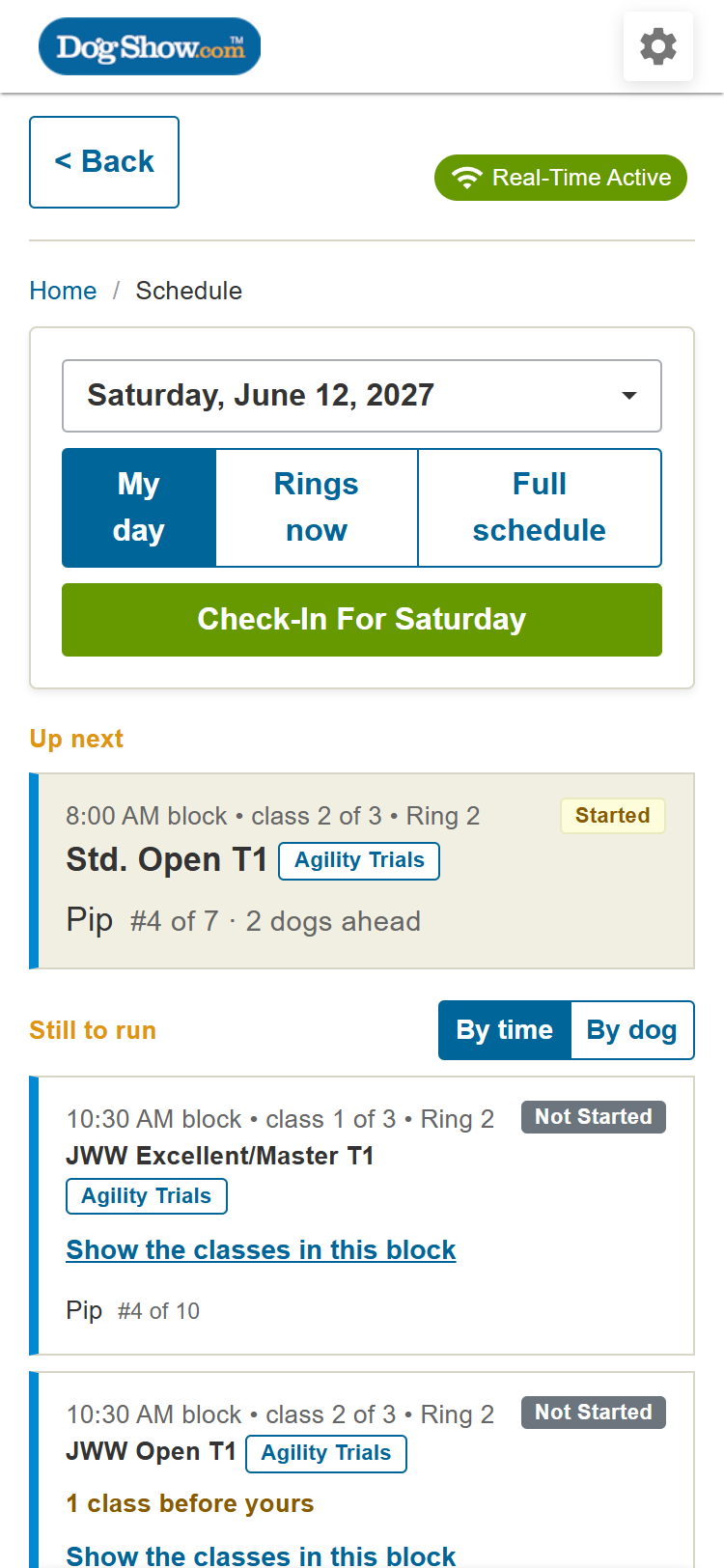
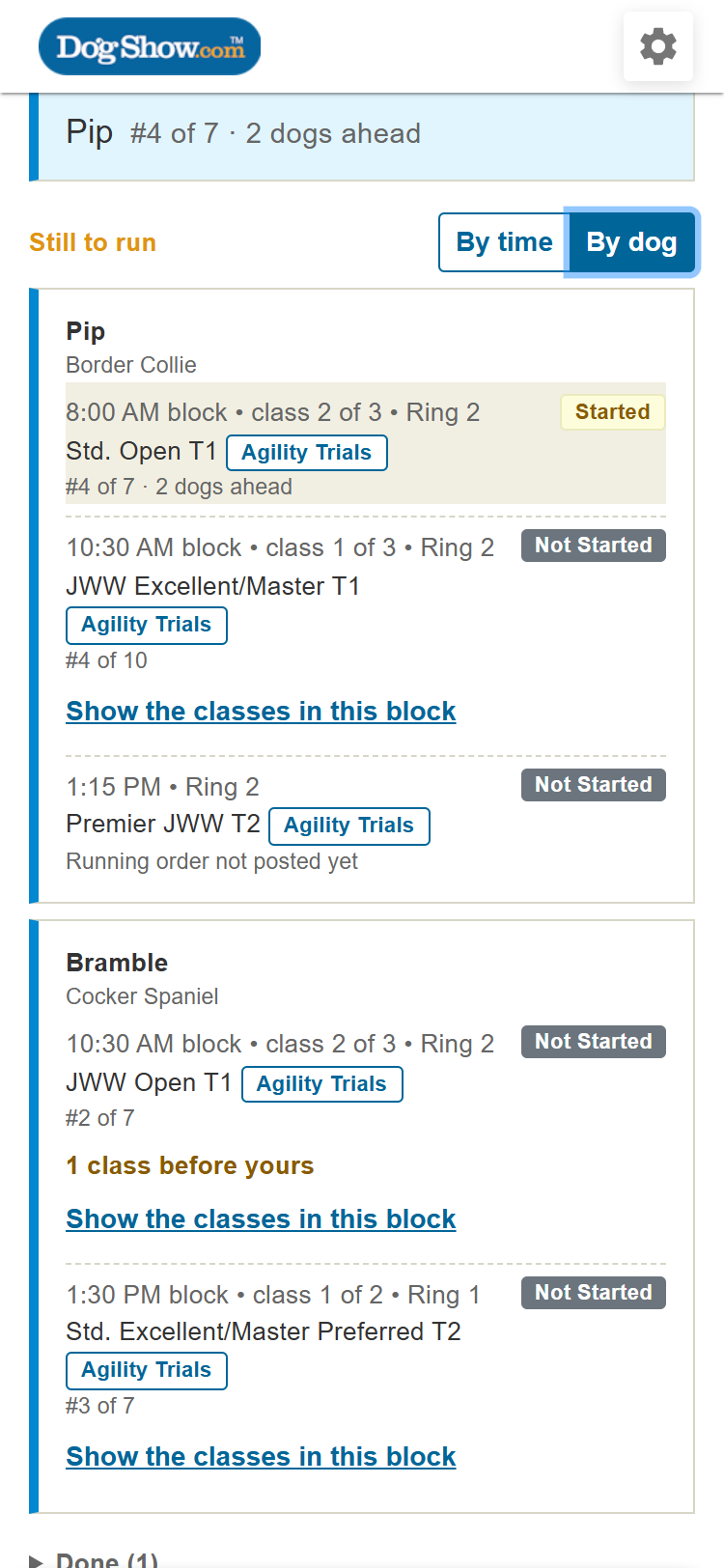
Each class shows its time and ring, its status (Not Started, Started, Last Call, Complete or Paused), and where each of your dogs stands:
| You'll see | It means |
|---|---|
| #4 of 12 · 2 dogs ahead | Your dog runs 4th of 12, and 2 dogs still have to go before it |
| #3 of 12 · next to go | Your dog is next |
| Running order not posted yet | The running order for that class isn't available yet |
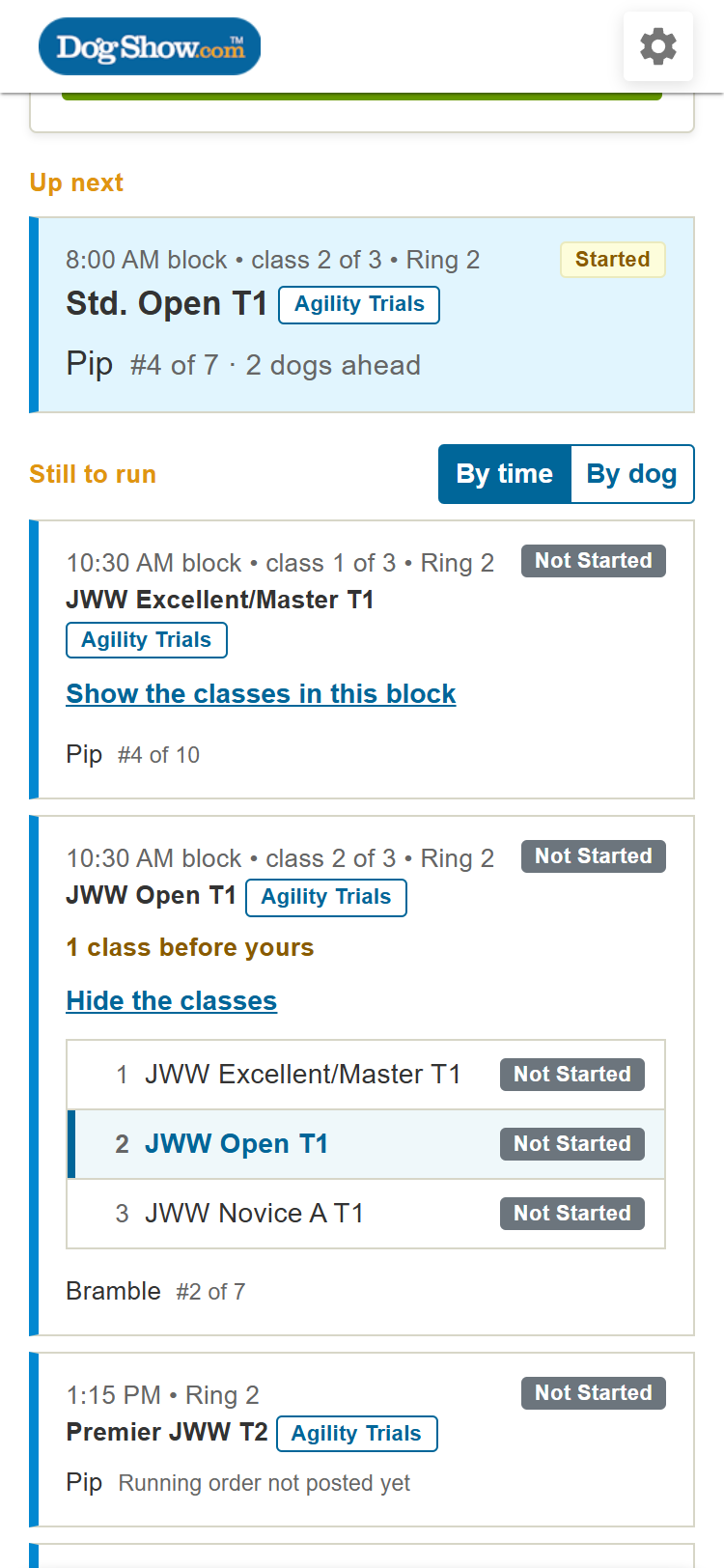
Classes that share a start time. Several classes often share one start time and run one after the other. Ringside shows these as a block, for example 8:00 AM block • class 2 of 3, with 1 class before yours or Your class is next. Tap Show the classes in this block to see them in order, with yours highlighted.
Paused classes. If the ring steward pauses a class, its status shows Paused, often with a reason (for example, a bar being reset).
Tap any class to open its running order.
3. What's happening in every ring (Rings now)
Tap Rings now for one tile per ring, showing the class in the ring (or the next one to start) and its status. For a class that's under way, the tile shows how many dogs are done and who's up next. Rings where you still have a dog to run are highlighted, with your dog's place shown on the tile.
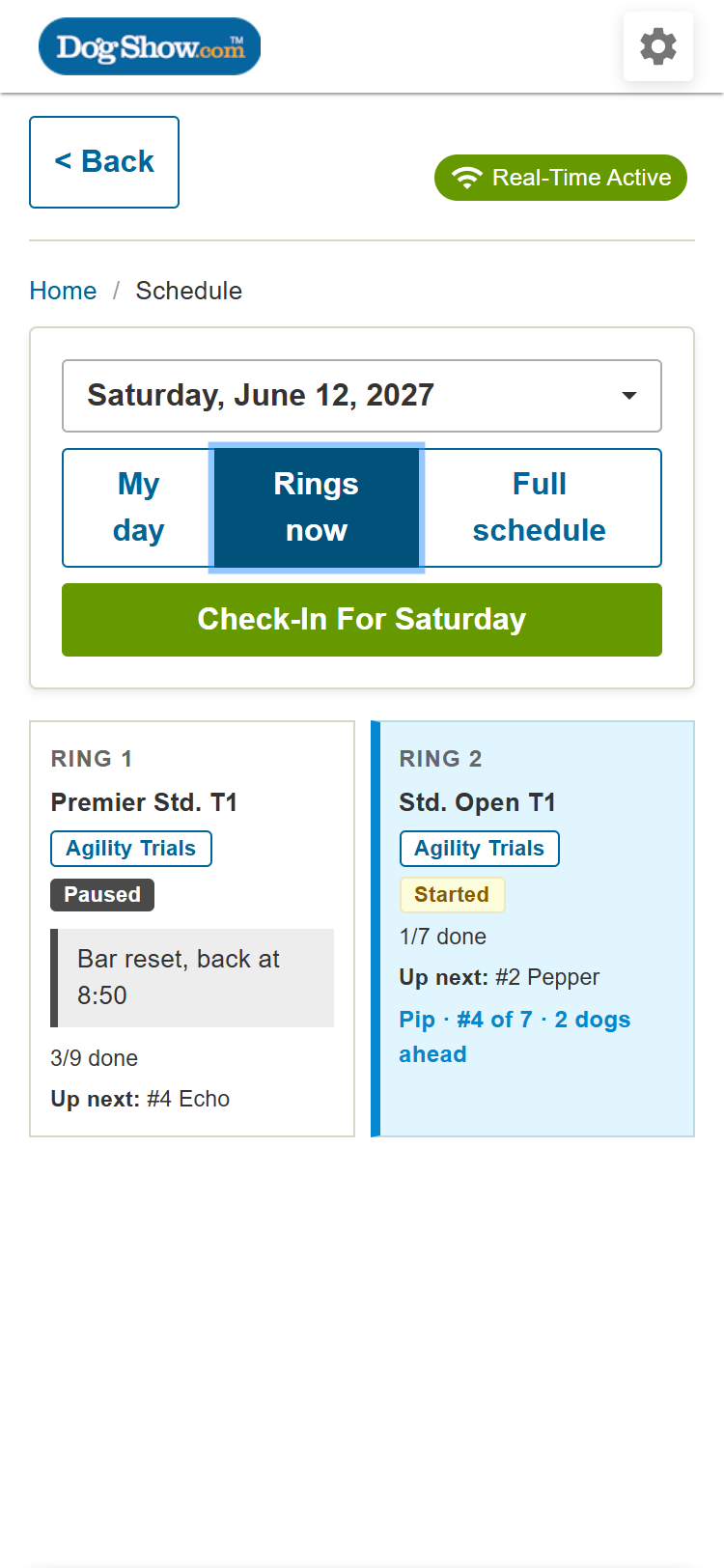
Tap a tile to open that class's running order.
4. The full schedule
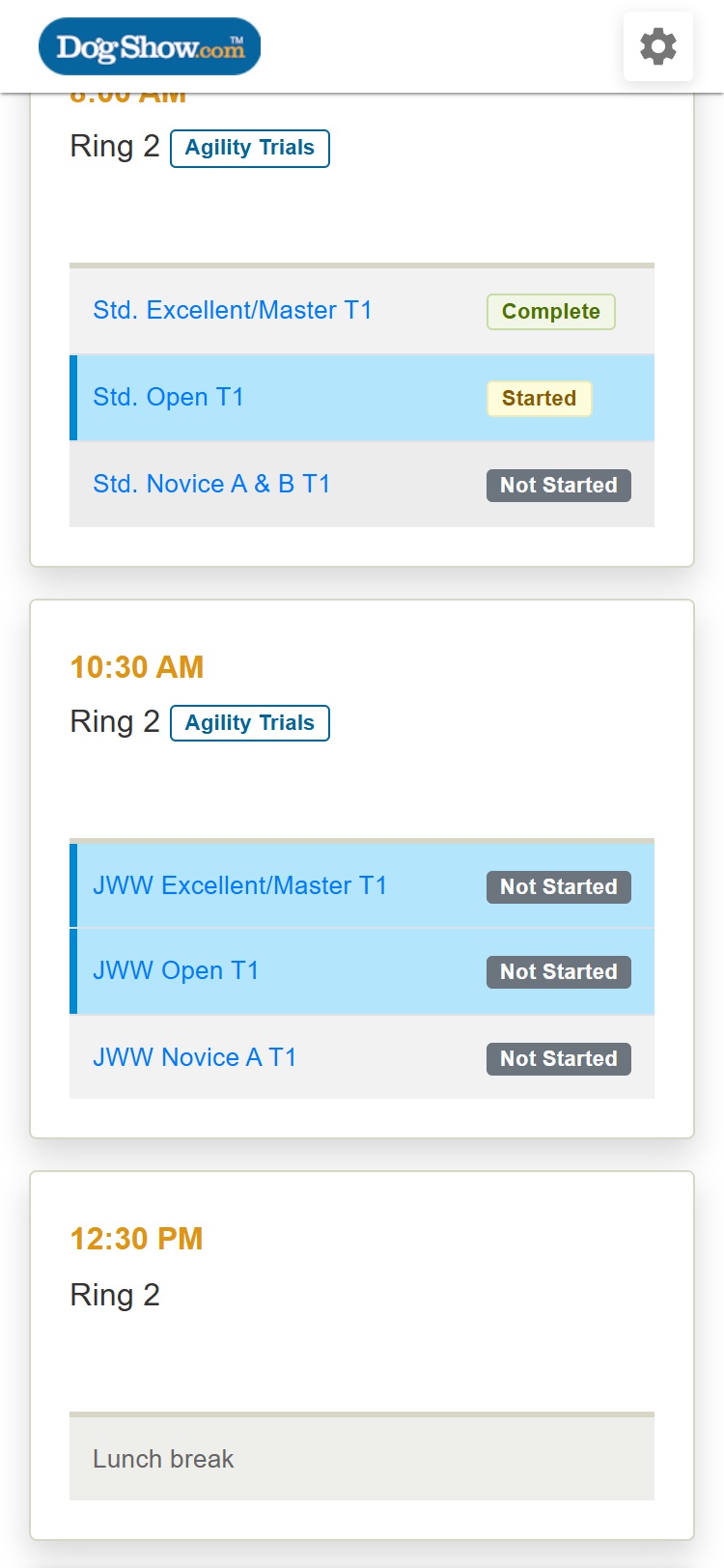
Tap Full schedule to see every class in every ring for the day. Classes where your dogs still have to run are shown in blue. Tap any class to open its running order.
5. Check in for the day
On the day of the event, a Check-In For [day] button appears at the top of your schedule (for example, Check-In For Saturday). Tap it, then Yes, Check In. This checks in all your dogs for that day, so the ring stewards know you're on the grounds.
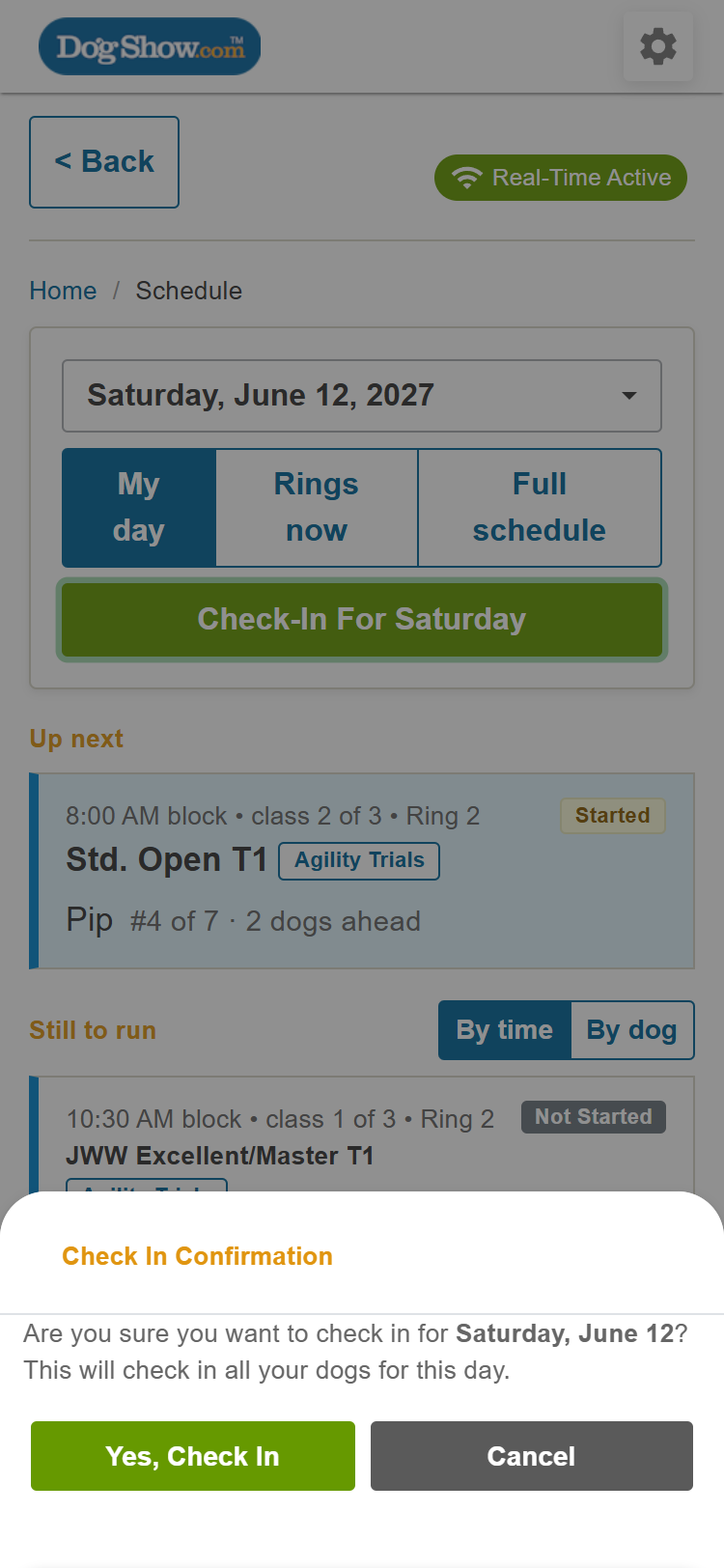
Changed your plans? Tap Cancel Check-In For [day], then Yes, Cancel Check In.
The check-in button only appears on the day itself, and only if you have entries that day.
6. Follow your class's running order
Open a class from any schedule view. At the top you'll see the class, ring and date, then:
- The class's progress, for example 1 of 7 dogs have run.
- Dogs before yours. For example, 2 dogs left to run before yours. Tap Show to see who they are, and Hide to fold them away again.
- Your dog. Its place, its status, any messages, and the Send Message and Scratch buttons.
- Dogs between yours and after yours. If you have more than one dog in the class, you'll see how many run between them. You can also see how many run after your last dog. Each has its own Show link.
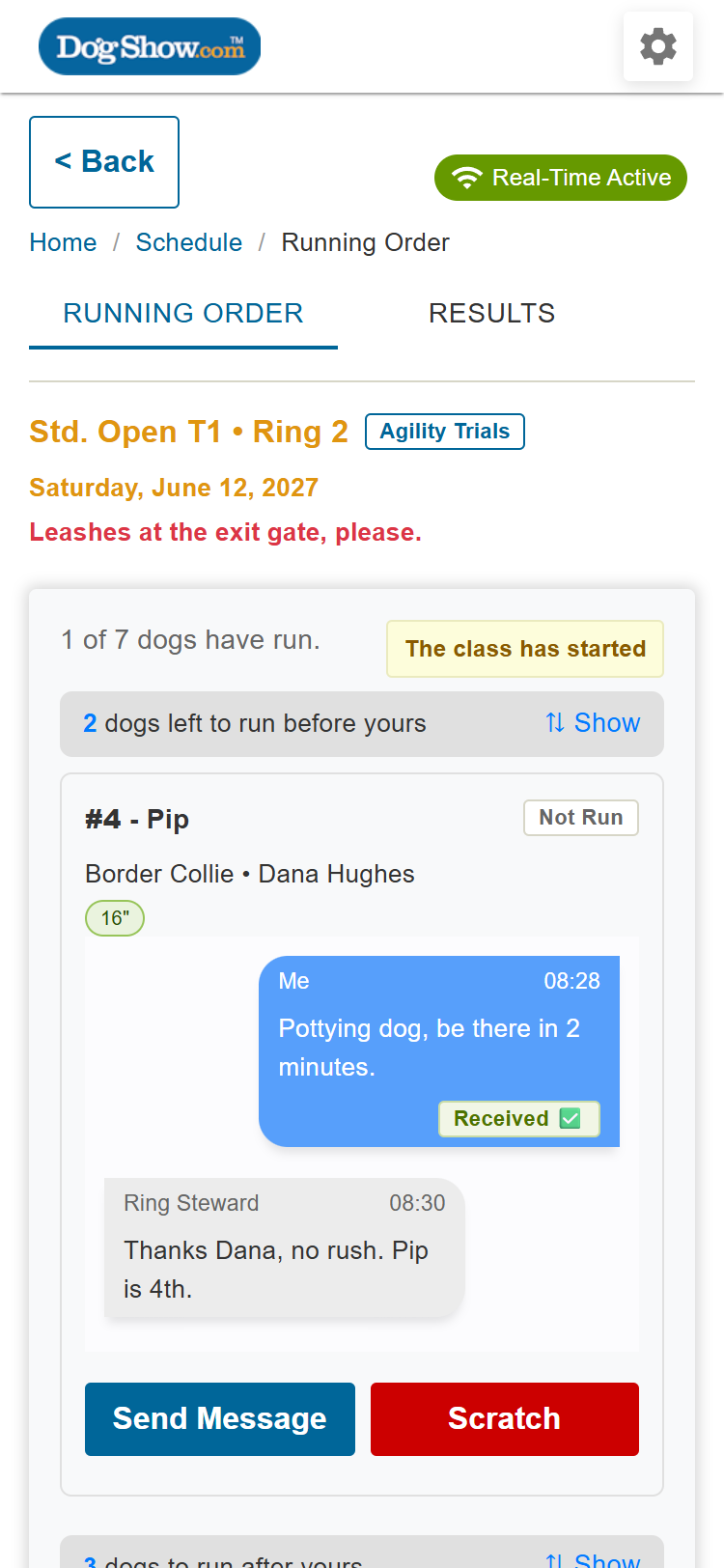
Ringside updates the running order as the steward works, so there's no need to refresh.
Notes and pauses. The ring steward can post a note at the top of the running order, for example where to wait. If the class is paused, the reason appears there too.
Results. For sports with live results, a Results tab appears beside Running Order.
7. Message the ring steward
Running late, or can't make your run? Let the ring steward know.
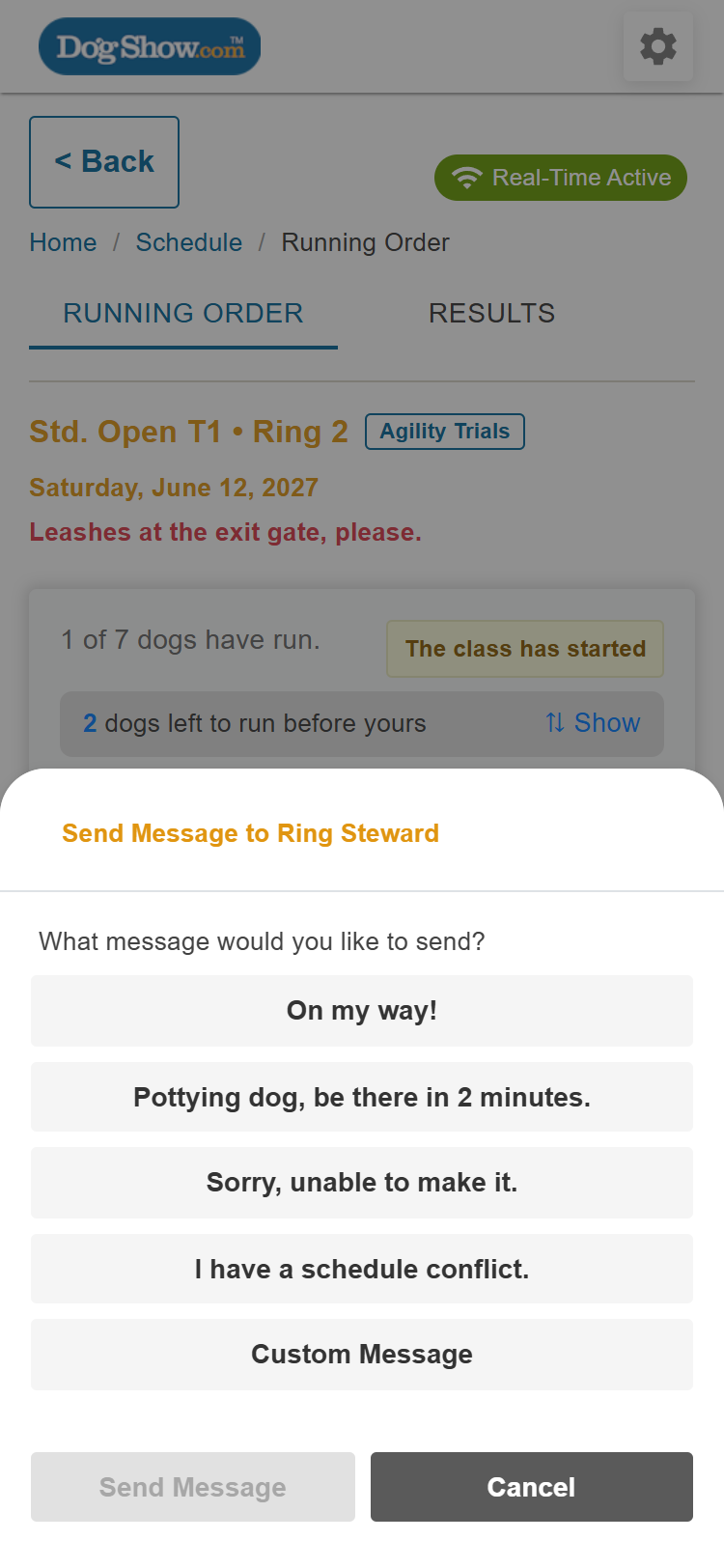
On your dog in the running order, tap Send Message.
Pick a ready-made message:
- On my way!
- Pottying dog, be there in 2 minutes.
- Sorry, unable to make it.
- I have a schedule conflict.
Or tap Custom Message and write your own (up to 100 characters).
Tap Send Message.
Your message appears on your dog, marked Sent. When the ring steward reads it, it changes to Received ✅. The steward's replies appear in the same place.
If the steward moves your dog in the running order (for example, to give you more time), you'll see its new place right away.
Send Message and Scratch disappear once your dog has run or the class is Complete.
8. Scratch a dog
If your dog won't be running in a class:
- On your dog in the running order, tap Scratch.
- Tap Yes to confirm.
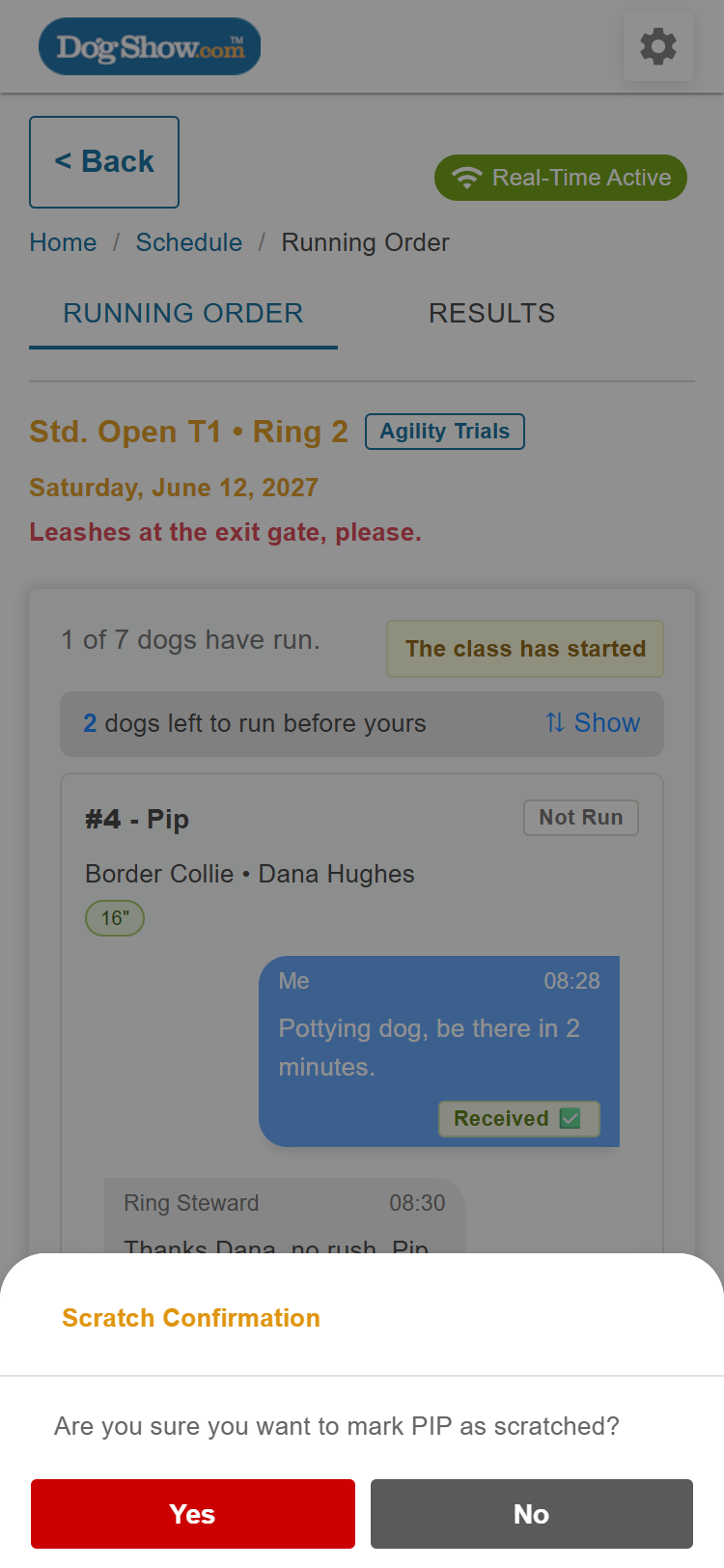
The ring steward sees the scratch immediately. To undo it, tap Cancel Scratch, then Yes.
9. Notifications
With notifications allowed, Ringside can let you know when:
- your class has started, if the ring steward chooses to notify competitors;
- your class is at last call and your dog hasn't run yet;
- the ring steward sends you a message, or a message to all competitors.
10. No app? Use Ringside in your browser
You can follow the same live schedule and running orders on the DogShow.com website. Open the Ringside link for the event (or scan the event's Ringside QR code), choose I'm a competitor and sign in with your DogShow.com account. You can check in, scratch and message the ring steward there too.
Notifications only work in the app. On the website you won't get any notifications from the ring steward or event secretary, so keep the page open and check it often, or install the app.


